
A hacked WordPress site needs a recovery sequence: contain the incident, preserve evidence, find the affected files and accounts, then restore or clean the site and close the entry point. Deleting the first suspicious file or restoring yesterday’s backup can leave the cause in place.
This host-level playbook helps site owners and administrators decide what to check themselves and what to ask their hosting team. Redirects, unknown administrators and server-load spikes are useful clues, but none identifies the full scope of an incident on its own.
Prepare for recovery with web hosting that includes daily backups, Imunify360 protection and a 24/7 support team.
If visitors are being redirected, shown phishing content or exposed to malicious downloads, ask your host to restrict public access while recovery proceeds. A server-level restriction is more dependable than a maintenance plugin running inside a compromised WordPress installation. Record when the symptoms started, affected URLs, recent deployments and any alerts before making changes.
From a device you trust, secure the accounts that control the site: hosting, WordPress administration, SFTP/SSH, email used for password resets and, where relevant, the domain registrar. Revoke unknown access and enable multifactor authentication where available. After cleanup, rotate credentials again if they could have been exposed during the incident.
Keep a separate copy of the current files, database and available logs, clearly marked as potentially infected. Store it outside the public web directory with restricted access. It may help identify the entry point or recover legitimate recent content; it is not a clean restore point. The official WordPress hacked-site guidance also recommends documenting the incident and contacting the host.
A useful support request includes:
If the hosting account itself is compromised or access keeps returning after cleanup, involve the host or an incident-response specialist before reopening the site.
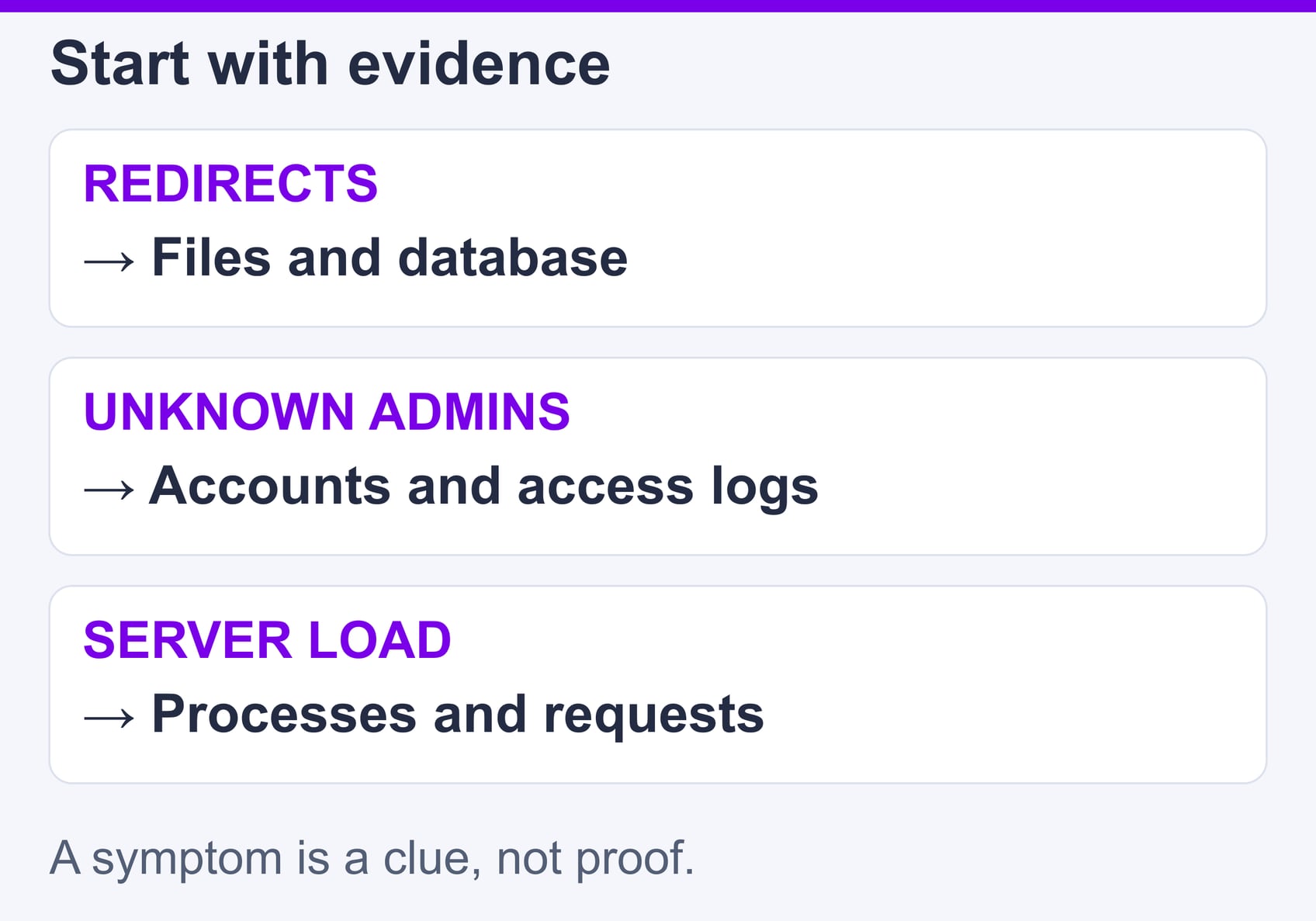
Use the symptom to choose the next check, rather than treating it as a diagnosis. Record what changed and compare it with a known-good version or a trusted vendor package.
| Symptom | Evidence to inspect | Avoid assuming |
|---|---|---|
| Unexpected redirects or injected links | Rendered pages, rewrite rules, theme/plugin files and database content | Every redirect comes from one file |
| Unknown administrator or spam accounts | Account roles, recent access, registration settings and audit logs if retained | Every unfamiliar username is malicious |
| White screen or PHP error | Private PHP error logs and recent code or version changes | A fatal error proves malware |
| High CPU or outbound mail | Processes, request logs, scheduled jobs and mail logs available to the host | A busy server proves cryptomining |
Redirects may depend on the visitor’s device, referrer or login state. Give support reproducible URLs and conditions, without opening suspected malicious destinations unnecessarily. For unexpected users, verify ownership first; preserve the relevant records before removing confirmed unauthorized access.
For a broken site, use the host’s private error log first. If debugging is necessary, follow the WordPress debugging documentation: keep errors off public pages, protect the log location and disable temporary logging afterward. Public debug output can expose file paths and other sensitive details.
A WordPress file scan, a public-page scan and a hosting-level scan answer different questions. The official website captures below identify the tools; they are marketing-page evidence, not screenshots of tests performed on your site.

Wordfence’s scanner can inspect the WordPress installation for suspicious files, malicious code and other issues. It is useful when the application remains accessible, but a compromised server or missing permissions can limit what an application-level tool sees.
Read each finding before acting. Wordfence can compare supported core, plugin and theme files with repository versions and offer repair where an original is available. Premium, custom or unavailable packages may need clean copies from their actual developer. Its scan-result documentation explains why modified files and unknown files need different handling. Preserve custom changes before replacing anything, and do not treat every difference as confirmed malware.
The free edition has delayed malware-signature and firewall-rule updates compared with Premium. Choose the service and update level appropriate to the incident; installing a plugin alone is not a complete recovery plan.
Sucuri SiteCheck is useful for checking what an external visitor can see: exposed malicious code, suspicious redirects and reported blocklist status. It can complement an internal scan, especially when a compromised site looks normal to a logged-in administrator.
Its access is limited to the public site. A clean result does not establish that private files, scheduled tasks or the database are clean. Use it as one check alongside file and account investigation, and retain the URL and time of any finding so you can compare it after repair.

Where the host provides it, Imunify360 adds a server-level view. The official user-interface guide describes file findings and scan history, with actions that depend on the host’s configuration. Ask which directories and accounts were scanned and whether the result records a detection, cleanup or removal.
Review the affected path and history before taking action. Cleanup can remove malicious content; deleting a file can also break a legitimate plugin or theme. Restoring an original from a cleanup backup can reintroduce the infection. An ignore-list entry is not a repair and can exclude a file from later scans.
SiteValley’s web-hosting page lists Imunify360 protection. Confirm available controls and the scope of assistance with support rather than assuming every customer sees the same interface or that an alert guarantees the whole account is clean.
Select a backup that predates the earliest evidence of compromise, not simply the latest visible symptom. Test it in an isolated recovery environment before replacing the live site. A backup can contain the same vulnerable plugin or stolen credentials that allowed the incident.
The WordPress backup guidance distinguishes database content from website files. You need to know what each restore point actually contains and whether those parts belong to the same working state.
| Restore scope | What it may recover | What to protect first |
|---|---|---|
| Files only | Core, plugins, themes and uploads included in that copy | Legitimate file changes; investigate database changes separately |
| Database only | Content, settings and application records from that time | New orders, accounts, submissions and incompatible file versions |
| Full account or site | The components included by that backup system | Everything created since the restore point; confirm email and other-site scope |
For a store, pause new transactions during the agreed recovery window and reconcile recent orders against trusted payment and business records. Do not blindly import the entire compromised database into a clean installation. Ask a specialist to recover legitimate records selectively when you cannot separate them safely.
In cPanel, the Backup Wizard documentation distinguishes partial restores from full-account restoration, which requires the server administrator’s tools. Your provider may use another backup system, so confirm the procedure before clicking Restore.
Whether you restore a backup or clean the current installation, keep the site restricted until the affected components and access paths have been reviewed. Replace compromised software with authentic packages, preserve legitimate custom work and update or remove the vulnerable component. A visible repair is incomplete if an attacker can repeat the same access.
Administrators with WP-CLI can run this read-only core integrity check from the correct WordPress installation directory:
wp core verify-checksums
The official command documentation explains that this compares core files with WordPress.org checksums without loading WordPress itself. It does not clean files or verify the database, uploads or every plugin. Investigate differences against the installed version and locale; checksum success is one limited result, not a clean-site certificate.
Review administrator roles, scheduled tasks, application credentials, configuration and rewrite rules with the host. Remove confirmed malicious additions while preserving required site behavior. Avoid bulk deletion based on filenames, modification dates or unfamiliar code alone.
Once access is under control, apply supported updates, restrict unnecessary write permissions and remove unused software. The WordPress hardening guide gives the broader maintenance framework. SiteValley’s basic WordPress security tips provide a short introduction to ongoing account and plugin hygiene.

Check both security findings and ordinary visitor tasks. Record the scope and time of the final checks so another administrator can see what was verified and what remains uncertain.
When checking forms, review their recipients, integrations and notification behavior as well as page layout. Our WordPress contact-form guide explains the features that may need retesting after a plugin replacement.
If Google still flags the site, use Search Console’s Security Issues report. Its sample URLs are examples rather than a complete list. Fix all issues in the report, document the changes and request a review when ready. Browser warnings can persist while review is pending; do not promise visitors an instant removal time.
For future recovery planning, compare backup retention, restore scope and support access. SiteValley Pro Web Hosting currently lists daily backups with 60 recovery points, Imunify360 protection and 24/7 support at $59.40 per year. Confirm the current web-hosting offer and restoration process with support. Those features help preparation; they do not guarantee incident cleanup or preservation of orders placed between backups.
Can I remove WordPress malware without reinstalling everything?
Will restoring yesterday's backup fix a hacked site?
Why does a scanner say the site is clean while visitors still see redirects?
Does Wordfence repair every infected plugin file?

Quick Customer care response, accurate and broad assistance, easy to use client area.....
I am very happy with the service. I am with site valley for many years and at the present usimg 2 hosting packages. Their service is excellent and super fast. Thanks & Greatly Appreciated
I've been hosting my websites with Sitevalley for more than 6 years. Very satisfied with the services and reliability they provide, competitive prices, almost no downtime, fast and knowledgeable customer support.
I have been using side valley for a couple of years now and have to say I am very happy with the service they offer.I use many Hosting services but site valley stands out in front. Reliable service, great support.I don't normally leave reviews but felt I wanted to for this service as it has been fantastic
I didn't want to review so soon on into taking out hosting with site valley but I feel obliged because their customer service is outstanding, second to none, every time I had an issue it was sorted immediately. I would highly recommend Site Valley.
I have been with Sitevalley for over a year and it's the best hosting I have EVER used. And I have been through a lot of them.
The support staff are amazing, and it's clear that they have a passion for hosting websites. I've rather enjoyed this webhosting company and it's stability for the price is bar-none, amazing.
My collegue adviced me to use SiteValley as a reliable hosting provider with great prices, professional and fast Customer Service. My experience with SiteValley was exactly the way I was promised.
I have been with SiteValley for many years, and plan to stay with them for many more. Customer support is very responsive and knowledgeable.
SiteValley.com is rated 4.8 / 5 based on 329 Reviews »

© 2001 – 2026 SiteValley.com. All Rights Reserved.
