
Migrating from Shopify to WooCommerce requires more than transferring products. You must preserve customer-order relationships, prevent inventory gaps, rebuild storefront functionality, map old URLs, test checkout, and prepare a rollback route before changing DNS.
This nine-step playbook covers hosting preparation, data transfer, validation, final synchronization, redirects, DNS cutover, and post-launch monitoring. Use it with this broader website migration checklist to protect traffic, search visibility, and revenue throughout the move.
This is a preparation and validation guide based on official documentation, not a report of a SiteValley test migration. The diagrams explain the checks; use your own store’s recorded results for launch approval.
Choose the transfer method before installing migration software. Price is secondary to what your store contains: an inexpensive CSV import can handle products but create expensive cleanup if subscriptions, metafields, customer relationships, or app-managed data disappear.
Product count alone does not determine difficulty. A large catalog using standard fields can be simpler to migrate than a small store whose subscriptions and custom fields depend on several apps.
An API-based migration tool can be a practical self-service route when it explicitly supports your products, variants, customers, orders and other required records. Verify its current entity list, field mapping and update behavior: using an API does not by itself preserve relationships or prevent duplicates.
CSV can work for a simple catalog when you only need selected entities. WooCommerce’s built-in product CSV importer handles products, not a complete store: customer and order imports require an appropriate separate tool. Transform Shopify columns to the supported WooCommerce schema, test variations and image URLs, and do not assume separate CSV files preserve record relationships.
Use expert-assisted migration for subscriptions, metafields, unusual apps, complex variant relationships, or extensive order history. Expert help is appropriate when compatibility must be assessed before transfer or when unsupported records require controlled recreation.
Plan a custom API transfer for bespoke data structures or integrations that must preserve exact relationships. The transfer should follow a written mapping specification and include representative tests before the full dataset is moved.
Self-service makes sense when the store uses records supported by the selected tool and you can check field mappings, relationships and totals. Subscriptions, custom checkout logic or app-owned data may still require a specialist even when the catalog is small.
Before touching production data, create a cutover checklist covering four decisions: the launch window, how long the Shopify account remains available, whether ordering pauses during cutover or new records receive a final delta migration, and who can authorize rollback. A delta migration is a second pass containing records created or changed after the full import began.
Define success in writing: expected records are imported, checkout passes a test purchase, important URLs remain valid or redirect to an equivalent page, transactional email sends correctly, and the rollback procedure has been tested rather than merely documented.
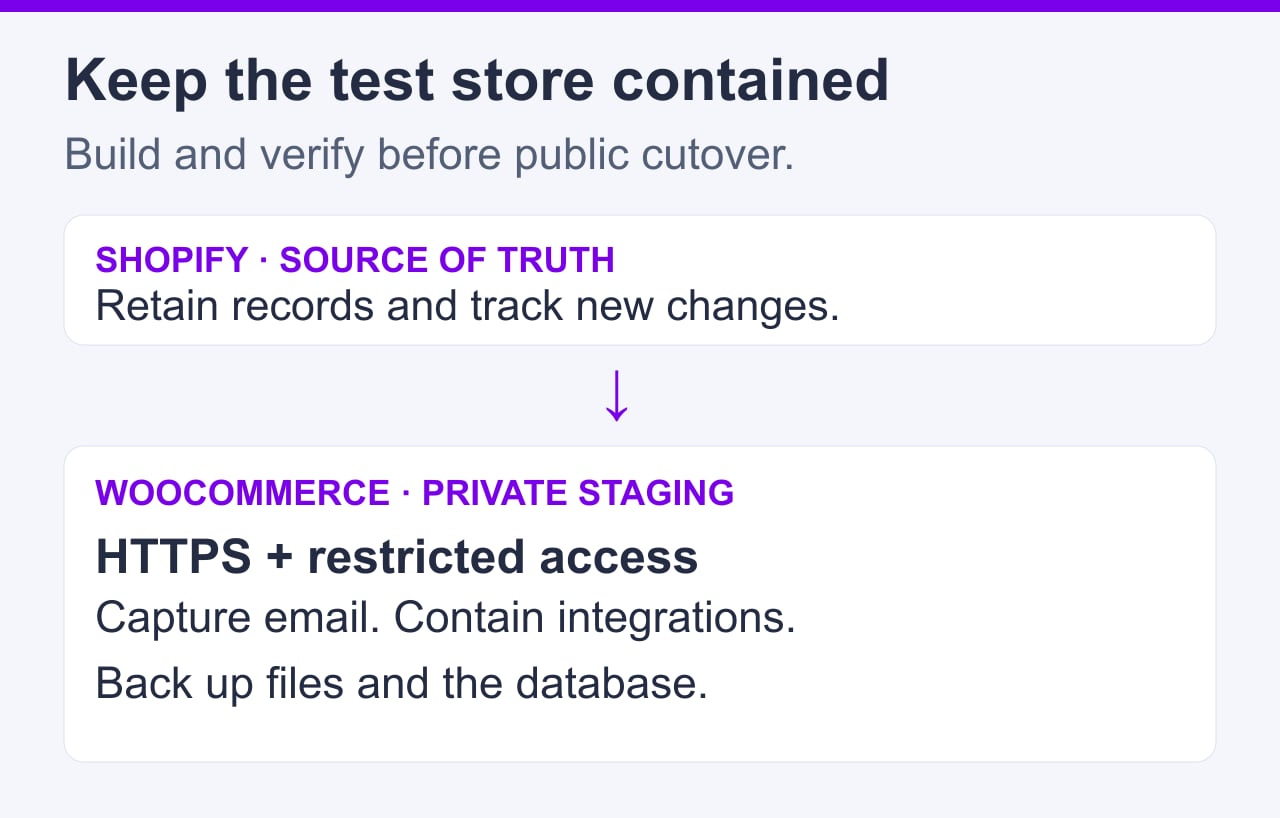
Build the destination before importing a single record, but keep it separate from the live domain. Use a temporary hostname or staging subdomain such as staging.example.com; do not point example.com away from Shopify yet. This gives you somewhere to test, restore, and repeat the migration without interrupting sales.
In cPanel, use Domains to create or confirm the staging hostname. Check SSL/TLS Status (sometimes a tab within SSL/TLS Certificates) and verify HTTPS without certificate warnings. Protect staging with HTTP authentication, such as Directory Privacy, or your host’s staging access controls. Also enable WordPress Settings → Reading → Discourage search engines from indexing this site. That setting is a crawler request, not access control. Labels and available tools depend on the host’s cPanel configuration.
Prevent staging from sending customer-facing order, account, or password-reset messages. The exact method depends on the mail setup, so confirm outgoing mail is blocked, redirected, or safely captured before importing customer records.
Before the first import:
Shared hosting can handle a modest, conventional catalog when the importer completes within the account’s managed resource limits. Moving to a VPS solely because the store uses WooCommerce is unnecessary. This guide to eCommerce hosting requirements explains the performance, security, scalability, and infrastructure factors to assess.
For stores that fit a shared environment, SiteValley’s Small Business plan currently lists $8.95 per month or $95.99 per year, cPanel, free SSL, a dedicated IP, unmetered web space and traffic, and daily backups with 60 recovery points. The 100,000 monthly visits figure is an estimate under typical conditions, not a guaranteed allowance. Confirm PHP, database, process and importer limits before scheduling a large migration.
A VPS can help when an import requires adjustable server settings, dedicated memory or long-running background jobs. SiteValley’s KVM4 Cloud VPS currently lists $39.99 per month, four CPU cores, 8 GB promotional DDR5 RAM, 80 GB NVMe storage and a 1 Gbps port. The page qualifies transfer as 5 TB before a 100 Mbit/s speed cap. Confirm the selected location and current promotion; root access also means server administration, security updates, backups and application tuning need an assigned owner.
The practical test is whether the selected environment provides protected staging, SSL, restorable backups, enough disk headroom, and sufficient resources for both the import and the live store. Confirm these requirements against the actual catalog, traffic, extensions, and migration tool rather than choosing a plan from product count alone.

Keep the destination deliberately simple before migration. Install WordPress using your host’s supported installer, then install WooCommerce from WordPress Admin → Plugins → Add New Plugin. Apply current stable WordPress, WooCommerce, theme, and extension updates before testing so the software baseline does not change halfway through an import.
Configure the settings that affect migrated records. Use WooCommerce → Settings → General for business location and selling currency; Settings → Products → General contains weight and dimension units. In WordPress Settings → General, check that WordPress Address and Site Address use the staging HTTPS URL. Under Settings → Permalinks, confirm the intended page and product permalink structures. Give each administrator a separate working login.
Use a lightweight temporary theme and install only extensions required by the migration tool. Every extra plugin introduces another possible conflict, scheduled task, database table, or checkout modification—variables that make import problems harder to diagnose.
Imported historical orders can trigger mail, webhooks, fulfillment, payment or subscription actions in connected extensions. Keep customer mail captured and external integrations disabled, sandboxed or routed to test endpoints before import. Review WooCommerce → Settings → Emails and the migration tool’s event behavior, but do not rely on email switches alone. Re-enable live services only after validation and launch approval.
Before the test migration, record this baseline:
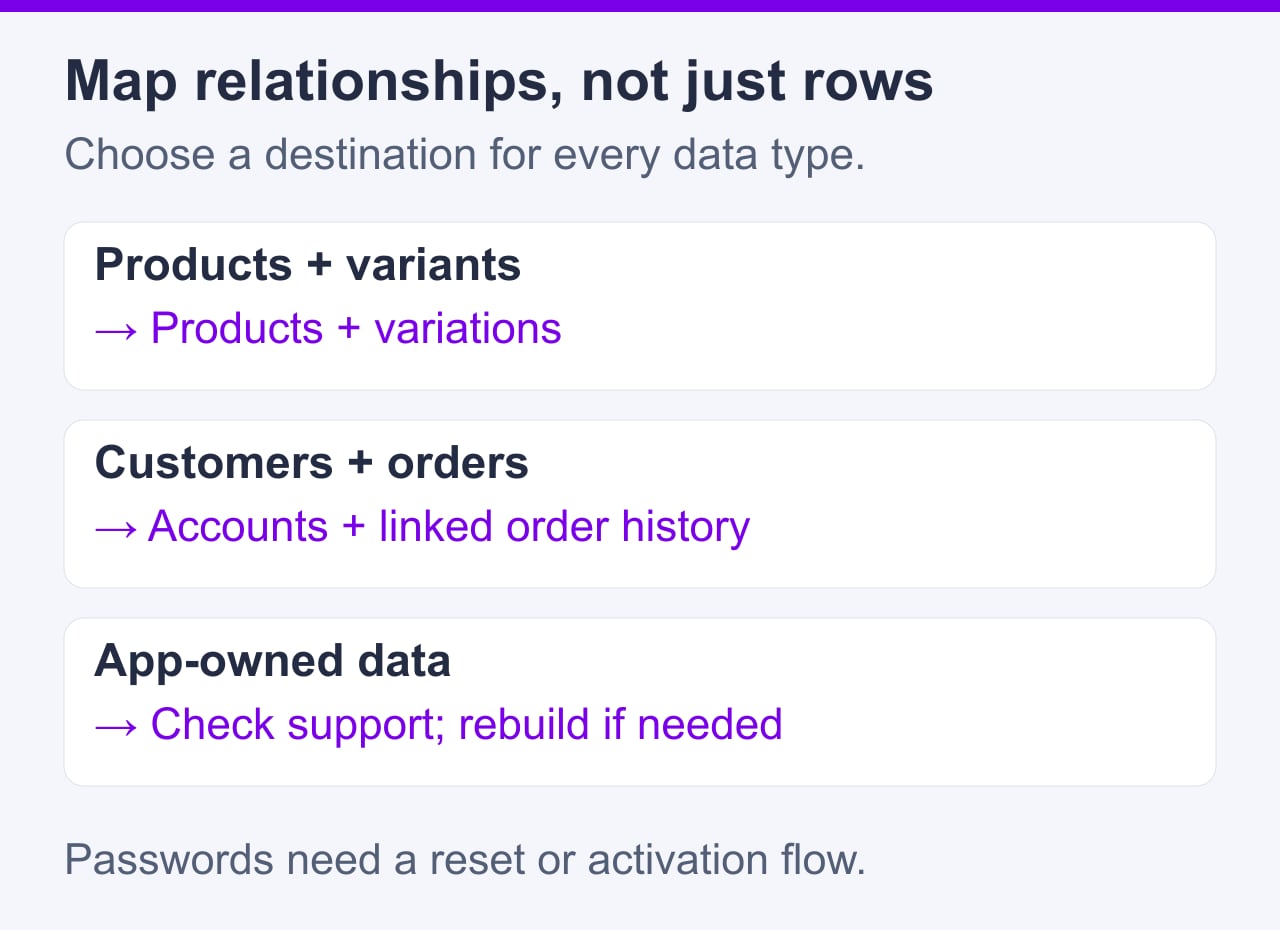
Before connecting a migration tool, build a source-to-target worksheet. Inventory products, variants, SKUs, collections, inventory quantities, images, customers, addresses, orders, discounts, reviews, pages, blog posts, metafields, gift cards, and multilingual content. Each item needs a destination decision rather than an assumption that the migration tool supports it.
| Shopify entity | WooCommerce destination | Migration method | Mapping requirement | Validation test | Owner |
|---|---|---|---|---|---|
| Products/variants | Products/variations | Direct/importer | SKUs, attributes, stock | Compare sample records | Store admin |
| Customers/orders | Customers/orders | Direct + mapping | Statuses, addresses, IDs | Check totals/relationships | Store admin |
| Metafields/reviews | Custom fields/review extension | Extension-dependent | Field/schema mapping | Inspect sample output | Developer |
| Gift cards/subscriptions | Compatible extension | Recreate/migrate where supported | Balances, states, renewal data | Test representative account | Operations |
| Pages/blog content | Pages/posts | Import/manual rebuild | Slugs, authors, media | Compare content and URLs | Content owner |
An export is not a complete portable store. WooCommerce’s migration-extension documentation confirms that Shopify APIs do not expose customer passwords, so plan secure account activation or password resets. Never copy raw payment-card details. Payment tokens, subscriptions, gift-card balances, reviews and app-owned metafields need explicit compatibility checks with the destination extension and payment provider.
Record current product, collection, page and blog URLs now, using source exports, the public sitemap and a crawl where appropriate. Shopify Admin → Content → Menus helps identify navigation links, but menus are not a complete URL inventory. Capture the underlying handles and existing redirects so the redirect worksheet uses known source URLs.
Products and orders are database records; theme layouts, navigation behavior, filters, and app logic are functionality. Shopify theme code does not become a WooCommerce theme through data migration, and an app feature does not automatically reappear because its associated records were imported.
Inventory payment, shipping, tax, fulfillment, analytics, subscription, fraud-prevention, CRM, and email integrations separately. For each integration, name the WooCommerce replacement and the person responsible for configuring and approving it. A revenue-critical app without an approved replacement is a cutover blocker, not a post-launch task.
Your completed worksheet should classify every item as a direct transfer, transfer with mapping, extension-dependent recreation, manual rebuild, or non-transferable. That classification becomes the specification for the limited migration test.
Turn the worksheet into a small, representative import before exposing the entire catalog to the migration process. Install the connector selected in Step 1 and follow its current vendor documentation, or prepare supported Shopify CSV files if that is your route. Connect Shopify as the source and the staging WooCommerce store as the target. Connector requirements and supported entities vary, so do not substitute settings from another migration plugin.
Build a sample that tests relationships and difficult records, not just quantities:
Map source values deliberately. Confirm product types, customer groups where supported, order states, tax-related fields, currencies, and custom values against their intended WooCommerce equivalents. A test that imports 20 records but attaches an order to the wrong customer has failed even if the record count looks correct.
Run only this sample. Record start and end times, warnings, failed entities, and any HTTP timeout or API errors. If images are missing, variants become standalone products, or customer-order links disappear, stop. Fix the connection or mapping before attempting the full transfer.
Grant the migration app or API credential only the permissions required by its current documented migration path. Confirm the connector can reach protected staging without opening the whole store to the public. Keep credentials out of screenshots, tickets and ordinary spreadsheets; use the approved secret-management channel.
Document who created the access and schedule its removal or rotation after the final synchronization and validation. This limits how long a migration credential can read or modify store data if it is later exposed.
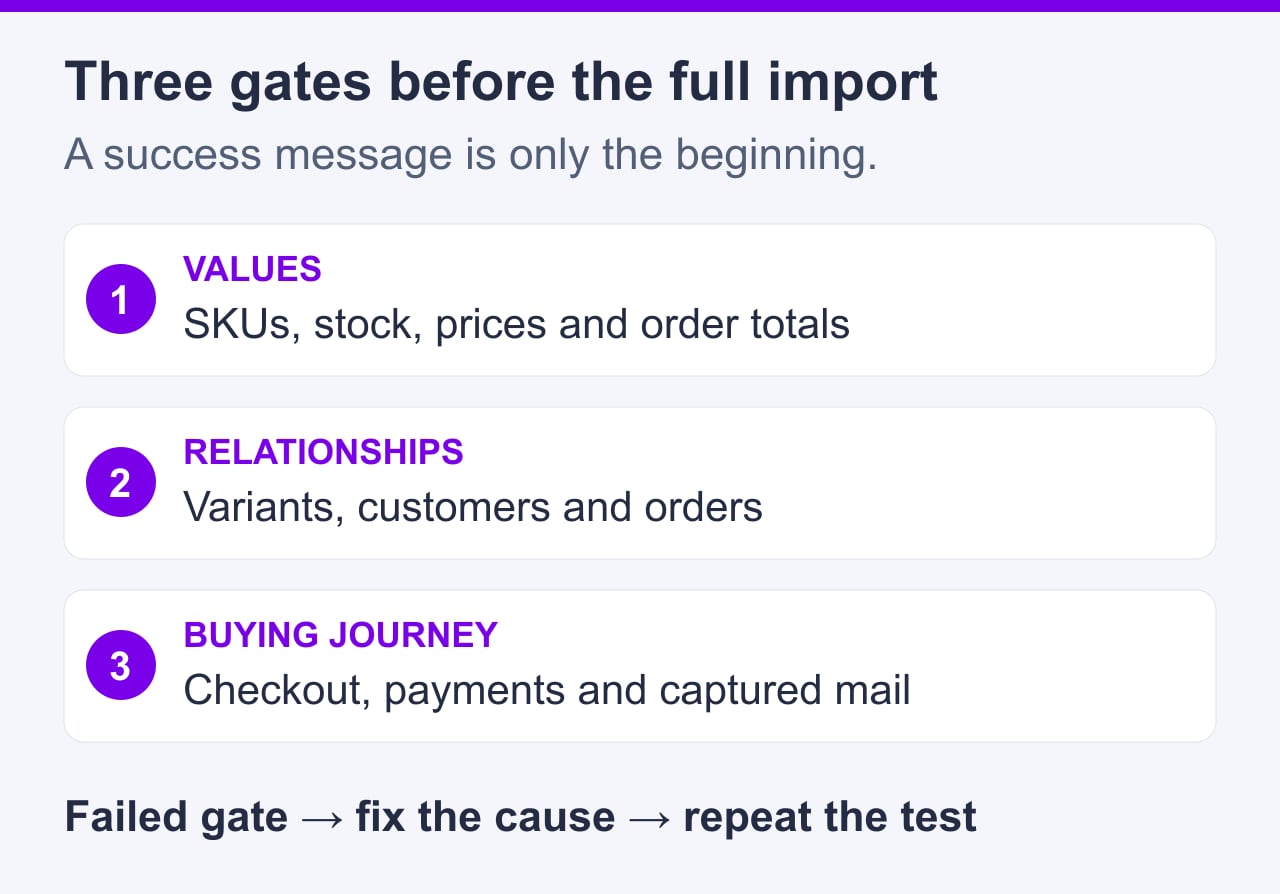
Do not approve the full import because the migration tool reports “success.” The release gate is whether WooCommerce preserved the values, relationships, and buying journey that make those records usable.
Start with source-versus-destination counts, then compare the actual fields:
Open representative records in WordPress Admin → Products and WooCommerce → Orders. Counts cannot reveal a variation attached to the wrong parent or an order assigned to the wrong customer.
Use a pass/fail sheet rather than informal notes:
| Test | Shopify source value | WooCommerce result | Expected behavior | Actual behavior | Owner | Status |
|---|---|---|---|---|---|---|
| Variant SKU | Record value | Imported value | Exact match | Record result | Catalog | Pass/Fail |
| Order total | Source total | Target total | Exact monetary match | Record result | Operations | Pass/Fail |
| Coupon checkout | Coupon rules | Test checkout | Correct discount | Record result | QA | Pass/Fail |
The sheet turns each discrepancy into an owned blocker instead of something rediscovered after launch.
Next, behave like a customer. Search for an imported SKU, use catalog filters, select every variation, add it to the cart, change quantity, apply a coupon, and proceed through checkout. Confirm that taxes and shipping choices match the intended configuration, checkout completes in the gateway’s test or sandbox mode, stock falls by the purchased quantity, the order appears under the correct account, and the expected order email reaches the staging mail capture.
Sample old Shopify product, collection, page, and blog URLs from the redirect worksheet. For each one, confirm that the planned WooCommerce destination is the closest relevant equivalent. Do not approve redirects merely because a destination URL exists.
If a release-gate test fails, do not import over bad mappings. Restore the clean destination backup or remove test records using the migration tool’s documented cleanup process, correct the mapping, and rerun the same sample until every blocking test passes.

Once the sample passes every release gate, run the full import—but treat Shopify as a changing source until the final synchronization finishes. Orders, customers, catalog records, and stock can change while the initial import is running.
Immediately before starting, take a fresh WooCommerce backup, check available disk space in cPanel → Files → Disk Usage, and record the exact start time and timezone. Capture source counts for every entity being migrated. Then let the selected tool import records in its documented sequence. Customers and products generally need to exist before orders that reference them, but the tool’s supported sequence takes precedence.
Use a control sheet so discrepancies have somewhere to be recorded:
| Item | Record |
|---|---|
| Full-import start time | Date/time + timezone |
| Source counts | Products, customers, orders, other entities |
| Destination counts | Completed counts after import |
| Excluded records | Archived/filtered/unsupported records |
| Failed records | Count + error/reference |
| Delta window | Full-import start → final synchronization |
| Approval status | Pending/Approved + owner |
A count mismatch is not automatically an import failure, but every difference needs a documented explanation.
While the import runs, watch both its progress screen and the hosting environment. Check cPanel → Metrics → Errors where available and cPanel → Files → Disk Usage for unexpected growth. Repeated retries, PHP errors, unavailable staging pages, database errors, or rapidly disappearing storage are reasons to pause and investigate rather than assume the importer will recover.
After completion, compare full source and destination counts. Reconcile differences against archived products, deleted or excluded customers, unsupported reviews or app data, test orders, and filters configured in the migration tool.
At cutover, stop catalog edits and control every order source, including other sales channels and automated integrations. Shopify Online Store password protection controls that storefront; separately check other channels rather than assuming all ordering has stopped. Run the selected tool’s supported recent-data import, then reconcile changes it cannot update, such as edited orders, refunds, stock changes or deletions. A “recent orders” import may not be a complete change log.
Final synchronization checklist:
Do not repeatedly restart an import that consistently times out. Escalate recurring timeouts, resource-limit errors, database connection failures, storage exhaustion, or unexplained unavailable pages to the appropriate hosting or migration-tool support team.
Provide the exact timestamp and timezone, migration stage, error text, destination URL, affected entity type, and any recent configuration changes. This gives support enough context to correlate the failure with server or application logs. Never paste API tokens, passwords, or migration credentials into an ordinary support ticket.
Before changing the domain, prepare permanent 301 redirects from important Shopify product, collection, page and blog paths to their closest WooCommerce equivalents. Install and test them on the destination that will receive those old paths. Follow Google’s site-move guidance: avoid redirect chains and blanket redirects to the homepage, and keep redirects for at least a year where practical.
Reconnect revenue-critical services in test or sandbox mode first: payment gateways, shipping, taxes, fulfillment, subscriptions, fraud controls, CRM, analytics, consent management, and webhooks. Run a test order through the full chain and confirm that each connected system receives the expected event.
Test transactional email separately from ordinary mailbox delivery. Trigger an order confirmation, password reset, failed-payment notification, and administrator alert. A working you@example.com inbox does not prove that WordPress can reliably send automated mail.
Prepare DNS without disturbing business email. Lower the web record’s TTL in advance where the DNS provider permits it, document the current A, AAAA, or CNAME values for rollback, and preserve MX, SPF, DKIM, and DMARC records. Review how DNS propagation, TTLs, and caching affect when customers begin reaching the new store.
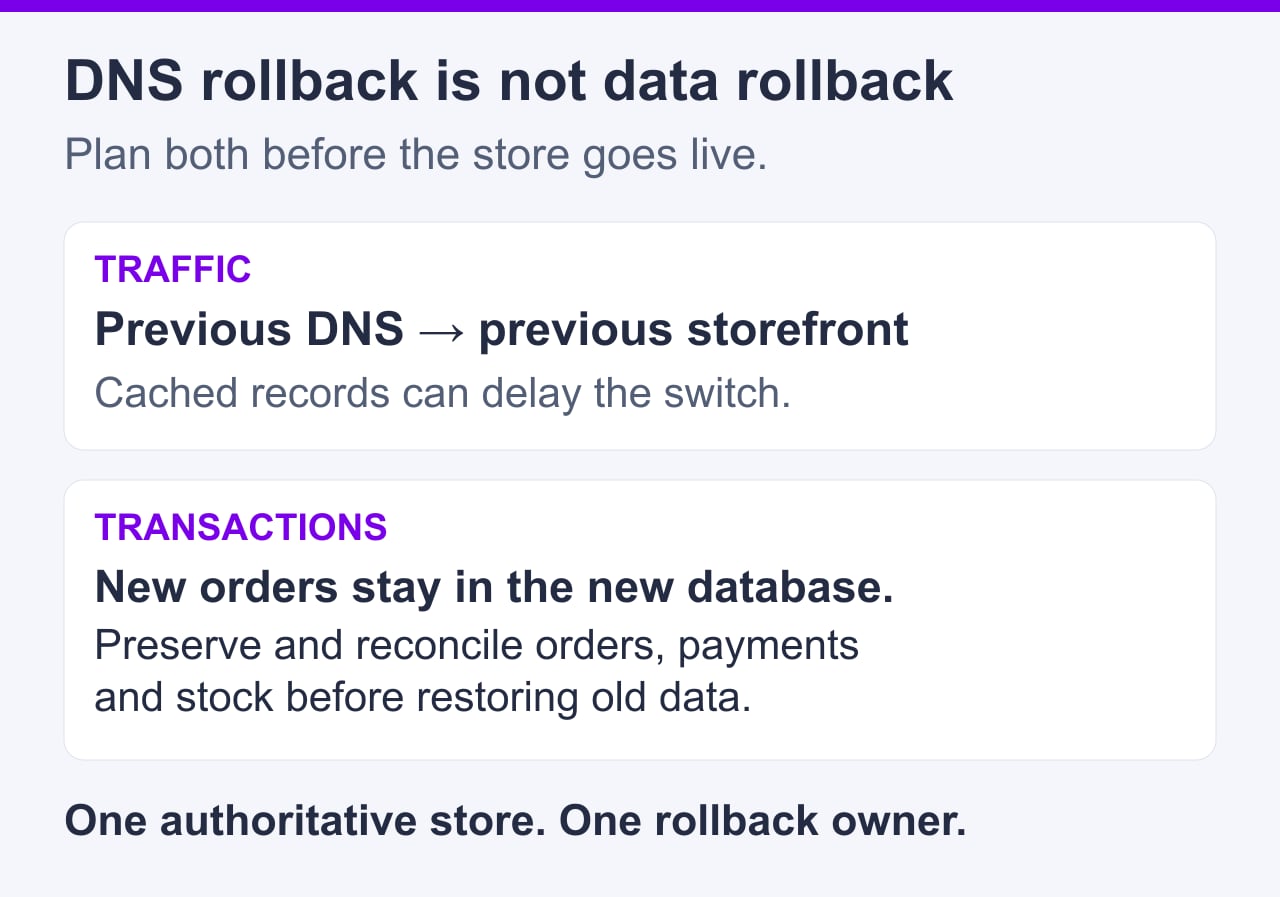
DNS rollback changes routing as cached records expire. It does not copy WooCommerce orders back into Shopify. Before reverting traffic or restoring an old database, preserve and reconcile all post-cutover orders, payments, refunds and stock changes. Decide which store is authoritative and stop concurrent ordering while reconciling; otherwise a rollback can lose sales data or cause duplicate fulfillment.
Launch approval checklist:
Prepare the destination for its public hostname before release. Follow the host’s supported staging-to-live process and WordPress migration guidance to update WordPress/Site Address and embedded staging URLs with a serialization-aware method. Back up first, avoid raw database-wide text replacement, and verify the final hostname’s TLS certificate, redirects and payment/webhook callback URLs. A local hosts-file override or the host’s preview facility can test destination routing before public DNS changes.
After final synchronization and launch approval, switch the required web A, AAAA or CNAME records to the destination. Preserve mail records unless a separately tested email migration requires a change. At release, remove staging HTTP authentication and unintended noindex restrictions, clear WordPress’s Discourage search engines setting for the public site, and set WooCommerce Site visibility to Live where applicable. Keep any retained staging copy private.
On the public domain, verify payment-gateway live settings and enable the approved email, fulfillment and webhook integrations. Complete a controlled real order with the store owner’s approval, then handle its refund and stock adjustment if appropriate. A sandbox transaction alone does not prove live payment authorization. Complete this sign-off:
During the agreed observation window, monitor 404s, server errors, failed webhooks, checkout failures, WooCommerce scheduled-action queue problems, email delivery, disk usage, and new orders. Keep the Shopify account and its data available, and retain the pre-launch WooCommerce backup until that window closes. Do not cancel the source store immediately, even if its public domain already points to WooCommerce.
Submit the current XML sitemap in Google Search Console → Sitemaps, then watch indexing, page-status, and redirect reports. Completion means a successful public-domain order, functioning integrations, monitored errors, reconciled inventory, and a usable rollback route—not merely DNS pointing at the new server.
A safe Shopify to WooCommerce migration ends only after the live store has processed enough representative activity to show that checkout, stock, email, redirects, analytics, and external integrations remain reliable. Keep the rollback route available throughout the agreed observation window.
Before decommissioning Shopify or removing migration access, complete a final production review:
Once the observation window closes, record final approval and preserve the migration worksheet, validation results, redirect map, and rollback documentation for future troubleshooting.
How do you migrate from Shopify to WooCommerce without losing orders?
Can Shopify customer passwords be migrated to WooCommerce?
Can Shopify subscriptions and payment methods be transferred?
How long should Shopify remain available after the migration?
Do you need a VPS for a Shopify to WooCommerce migration?
How can you preserve SEO when moving from Shopify to WooCommerce?
What should a Shopify-to-WooCommerce rollback plan include?

Quick Customer care response, accurate and broad assistance, easy to use client area.....
I am very happy with the service. I am with site valley for many years and at the present usimg 2 hosting packages. Their service is excellent and super fast. Thanks & Greatly Appreciated
I've been hosting my websites with Sitevalley for more than 6 years. Very satisfied with the services and reliability they provide, competitive prices, almost no downtime, fast and knowledgeable customer support.
I have been using side valley for a couple of years now and have to say I am very happy with the service they offer.I use many Hosting services but site valley stands out in front. Reliable service, great support.I don't normally leave reviews but felt I wanted to for this service as it has been fantastic
I didn't want to review so soon on into taking out hosting with site valley but I feel obliged because their customer service is outstanding, second to none, every time I had an issue it was sorted immediately. I would highly recommend Site Valley.
I have been with Sitevalley for over a year and it's the best hosting I have EVER used. And I have been through a lot of them.
The support staff are amazing, and it's clear that they have a passion for hosting websites. I've rather enjoyed this webhosting company and it's stability for the price is bar-none, amazing.
My collegue adviced me to use SiteValley as a reliable hosting provider with great prices, professional and fast Customer Service. My experience with SiteValley was exactly the way I was promised.
I have been with SiteValley for many years, and plan to stay with them for many more. Customer support is very responsive and knowledgeable.
SiteValley.com is rated 4.8 / 5 based on 329 Reviews »

© 2001 – 2026 SiteValley.com. All Rights Reserved.
