
Slow WordPress pages can increase bounce rates, frustrate visitors, and make important actions such as submitting a form or completing a purchase more difficult. The cause may be uncached pages, oversized images, render-blocking assets, inefficient plugins, limited hosting resources, or third-party scripts.
WordPress performance plugins address some of these problems by caching pages, optimizing CSS and JavaScript, compressing images, lazy-loading media, or connecting the site to a content delivery network (CDN). However, installing several optimization plugins without a plan can duplicate features and create display or functionality problems.
The right choice depends on what is slowing down your site, which optimizations your host already provides, and how much control you need. This guide compares the leading options and explains how to configure them safely.
A WordPress performance plugin changes how the website generates, processes, or delivers pages and assets. Some plugins focus on one task, such as page caching or script optimization, while others combine several performance features.
Common capabilities include:
No plugin fixes every source of poor performance. Slow database queries, overloaded hosting, inefficient themes, and third-party services may require changes outside the plugin itself.
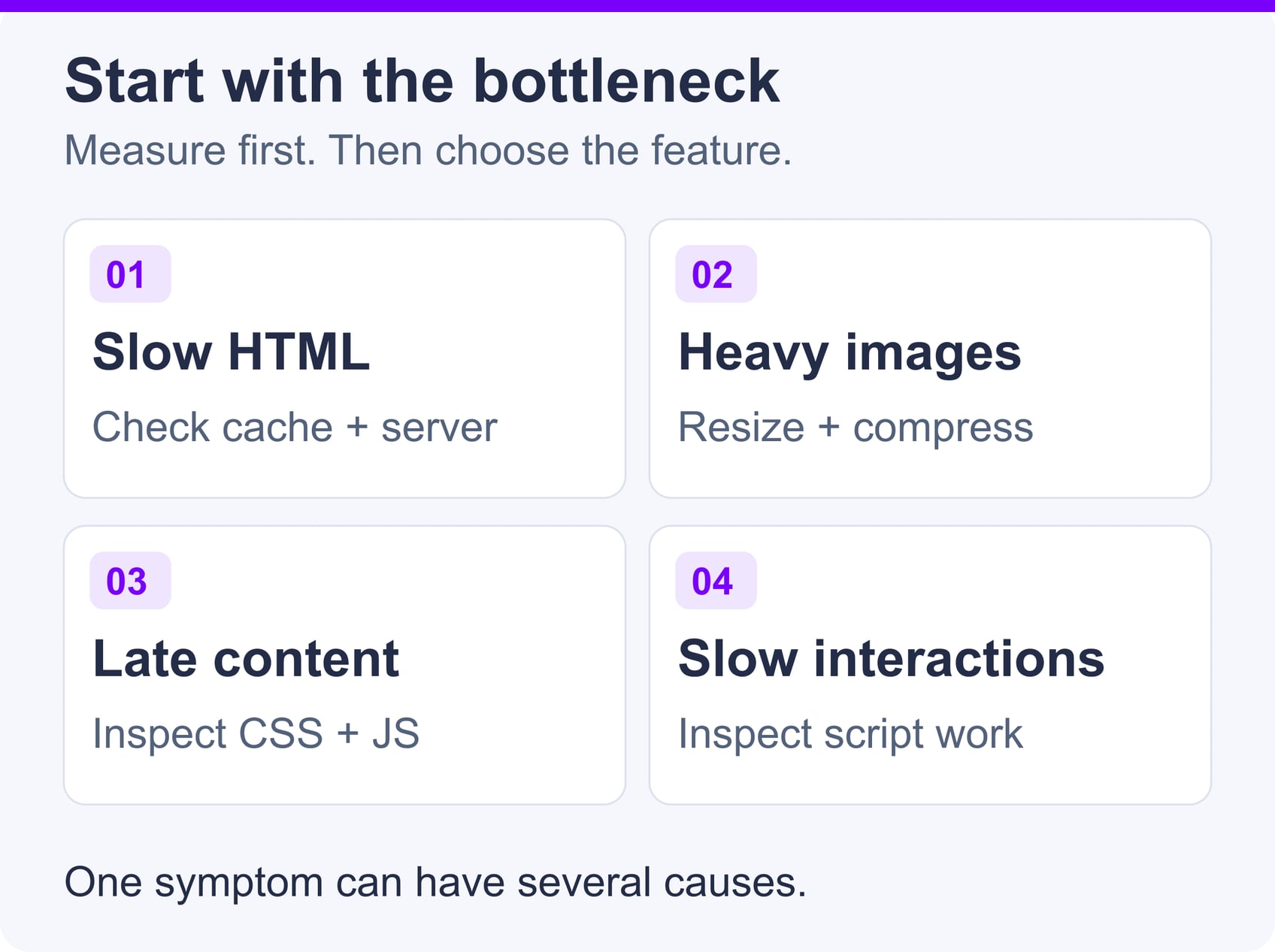
Start by testing representative pages instead of selecting the plugin with the longest feature list. A homepage, blog post, product page, and checkout page can have different bottlenecks. Slow initial HTML suggests checking cache behavior and server work; large image downloads suggest reviewing dimensions and compression. Late-rendering content and slow interactions warrant inspecting CSS, JavaScript and third-party scripts. These are investigation paths, not diagnoses: one symptom can have several causes.
Page caching reduces repeated PHP and database work by serving stored output when appropriate. It is most effective for public pages that do not need to display unique information for each visitor.
Dynamic pages such as shopping carts, checkout screens, and logged-in account areas normally need cache exclusions. For a focused comparison of caching tools, see the best WordPress cache plugins.
Minification reduces file size, while deferring or delaying scripts can reduce the amount of work performed during the initial render. Removing unused CSS may also reduce render-blocking code.
These settings require testing. Aggressive optimization can break menus, sliders, forms, analytics, consent tools, and page-builder components. Enable one major setting at a time so you can identify the cause if something fails.
Large images are a common source of unnecessary page weight. Compression, correctly sized files, responsive images, and modern formats can reduce downloads without making images visibly poor.
A dedicated WordPress image optimization plugin may provide more control over compression levels, backups, and format conversion than an all-in-one plugin. Avoid running two tools that both rewrite or lazy-load the same images.
Keep images visible in the first viewport—especially the image responsible for Largest Contentful Paint (LCP)—out of lazy loading. Reserve lazy loading for offscreen media, and check the page’s actual behavior after enabling a plugin’s setting. Google’s image-loading guidance explains this distinction.
A CDN can cache static assets at multiple locations and deliver them from a suitable edge server. This is most useful when visitors are geographically distributed or the site serves many static files.
A CDN does not automatically correct slow PHP execution, expensive database queries, or excessive browser-side JavaScript. Treat it as one part of the delivery stack rather than a replacement for application optimization.
Check compatibility with your WordPress version, theme, page builder, ecommerce plugin, and host-level caching. Also review documentation for cache exclusions, troubleshooting, and rollback procedures.
Do not activate the same page caching, minification, lazy-loading, or script-delay feature in multiple plugins. Duplicate processing can create conflicts and make troubleshooting harder.
The following plugins address different performance requirements. Some include page caching, while others complement caching supplied by a host or another tool. This comparison is based on current official documentation, not hands-on benchmark results. The images show official product websites or a vendor-published interface example; vendor claims pictured in them are not independent measurements.
| Plugin | Best suited to | Page caching | Main strength |
|---|---|---|---|
| WP Rocket | Beginners who want an all-in-one paid tool | Yes | Guided caching and front-end optimization |
| LiteSpeed Cache | Sites running on LiteSpeed servers | Requires LiteSpeed server cache or QUIC.cloud CDN | Server-integrated caching and QUIC.cloud services |
| W3 Total Cache | Advanced users who want detailed controls | Yes | Multiple caching methods and CDN support |
| WP Super Cache | Sites needing straightforward page caching | Yes | Static HTML page caching |
| Autoptimize (free) | Sites that already have page caching | No | CSS, JavaScript, and HTML optimization |
| Perfmatters | Users who want script-level control | No | Script Manager and feature disabling |
| FlyingPress | Users who want broad optimization in one plugin | Yes | Caching, asset optimization, and lazy loading |
Feature availability can change between free and paid versions. Confirm the current plugin documentation before choosing a tool based on one specific feature.
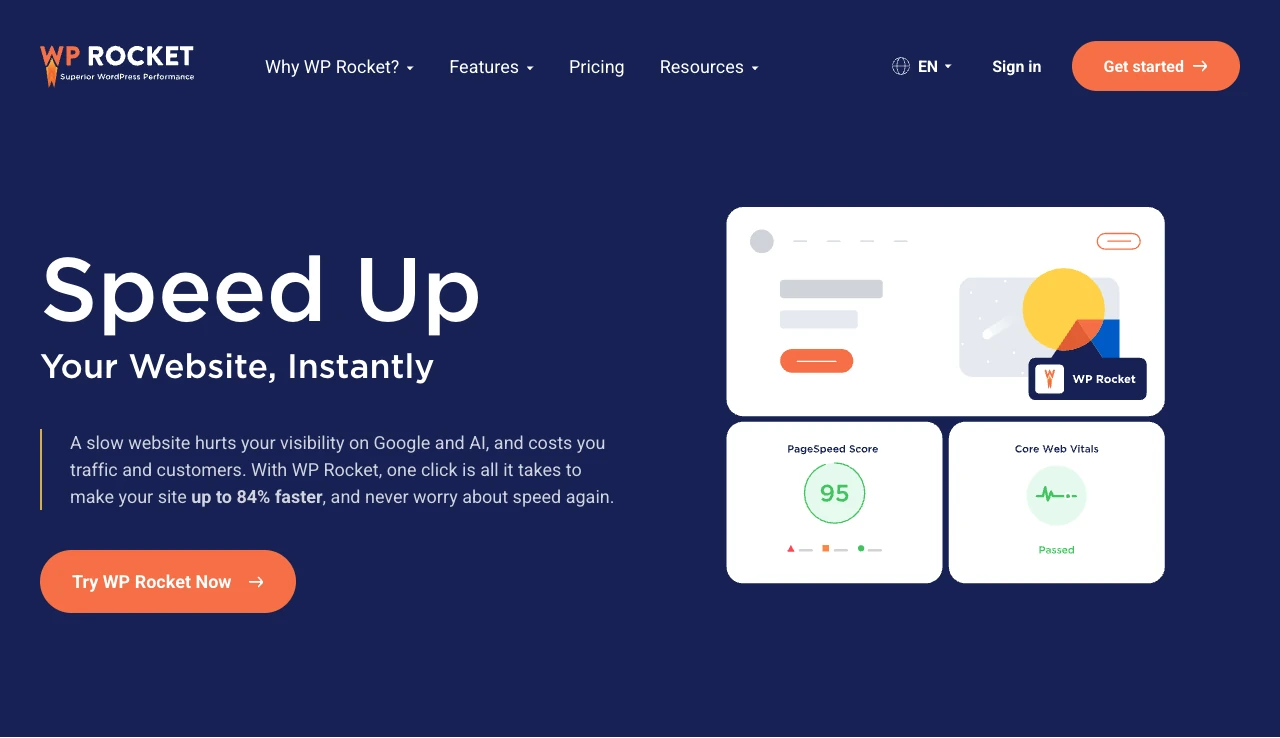
WP Rocket is a paid caching and performance plugin designed to provide useful defaults after activation. It includes page caching, cache preloading, browser caching configuration, lazy loading, and CSS and JavaScript optimization options.
Its Remove Unused CSS and Delay JavaScript Execution features can improve front-end delivery, but exclusions may be required for interactive scripts. Image compression is not built directly into WP Rocket; the same company offers Imagify as a separate service and plugin.
WP Rocket is a practical choice for users who want caching and asset optimization in one interface without managing a large set of independent tools.
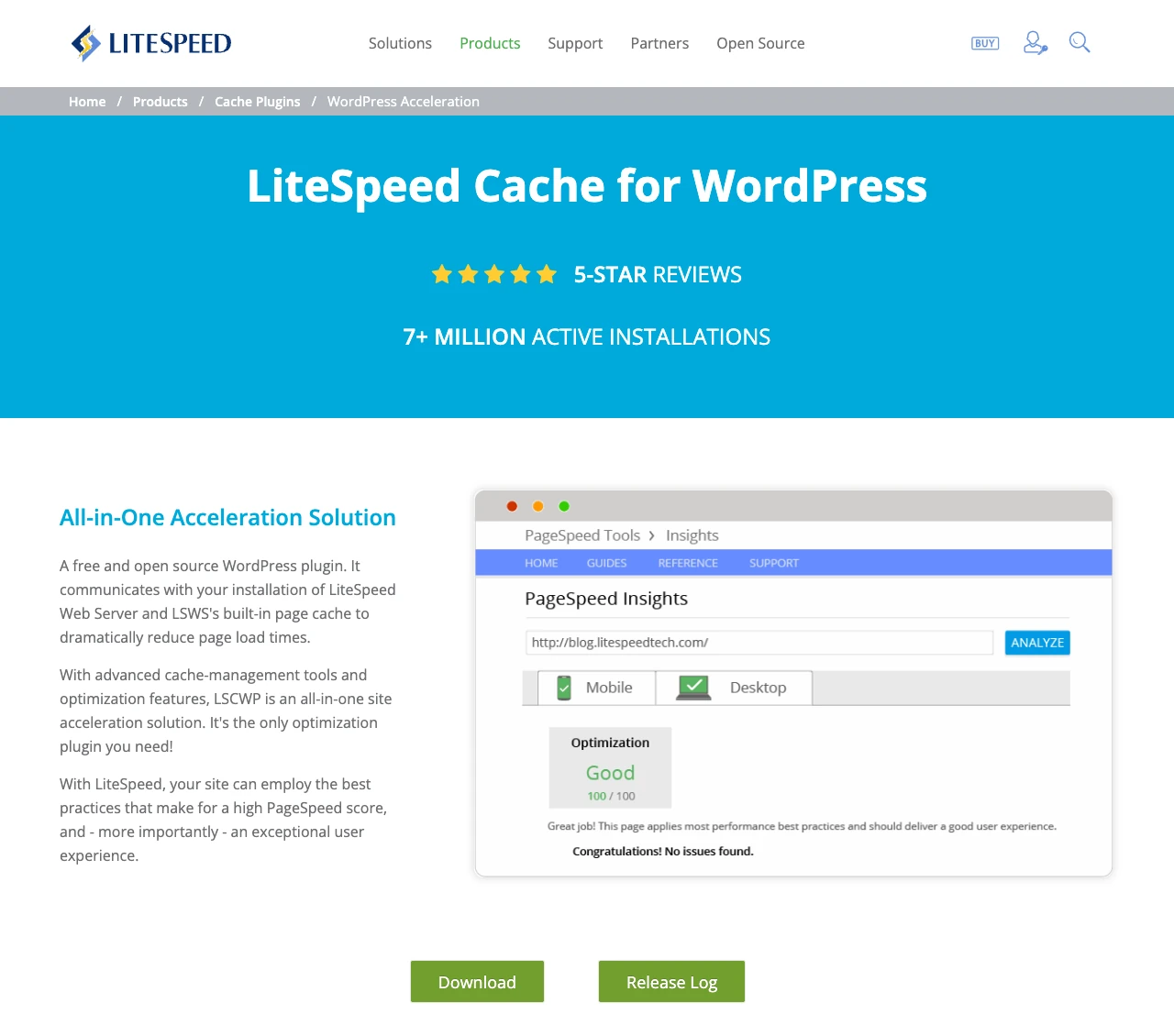
LiteSpeed Cache for WordPress includes page optimization, image optimization through QUIC.cloud, lazy loading, database cleanup, and CDN integration. Its full-page caching requires a compatible LiteSpeed cache engine: LiteSpeed Web Server, OpenLiteSpeed, LiteSpeed Web ADC, or QUIC.cloud CDN.
The plugin can still provide many optimization features on other web servers. However, installing it alone does not add LiteSpeed page caching to an Apache or Nginx origin; a configured QUIC.cloud CDN is another supported route. Check the official caching requirements and any service quotas before choosing it.
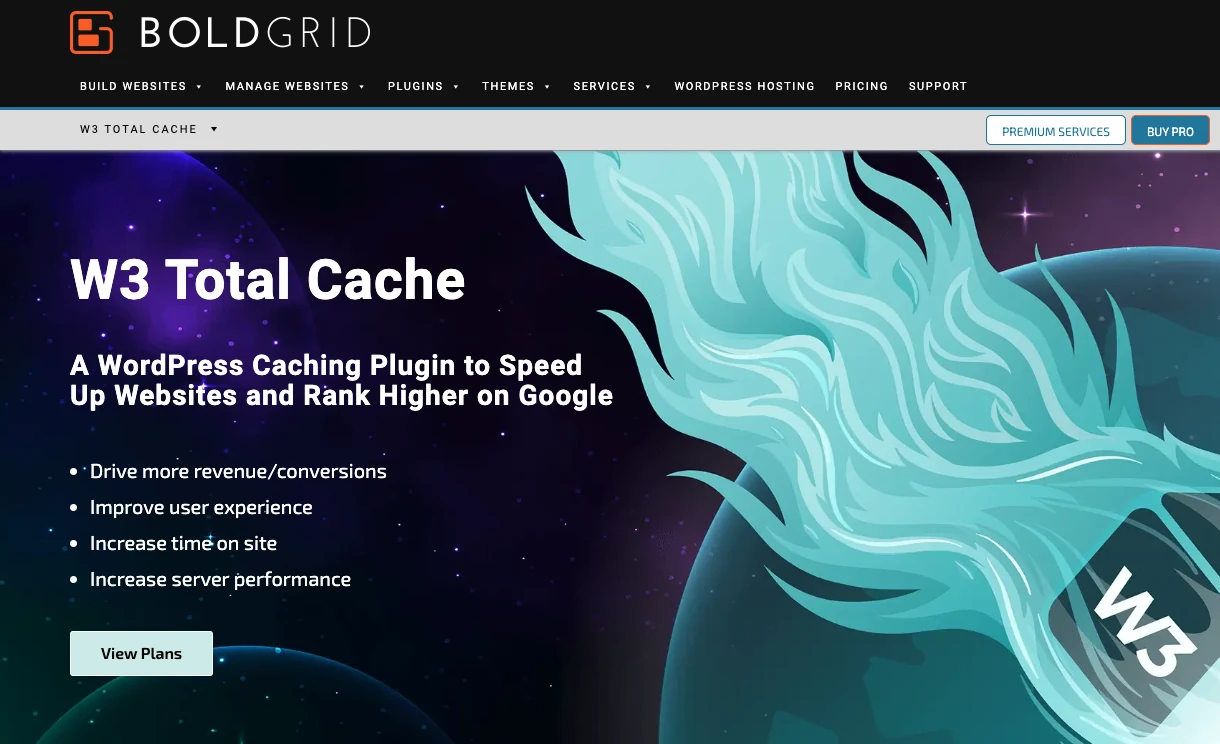
W3 Total Cache provides page, browser, database, and object caching options, along with asset minification and CDN integration. The available methods and their effectiveness depend on the hosting environment and installed server components.
Its detailed settings can be useful for experienced administrators, but activating every cache type is not automatically beneficial. Database caching, for example, may add overhead on some shared hosting configurations. Test each layer rather than assuming more caching always means better performance.
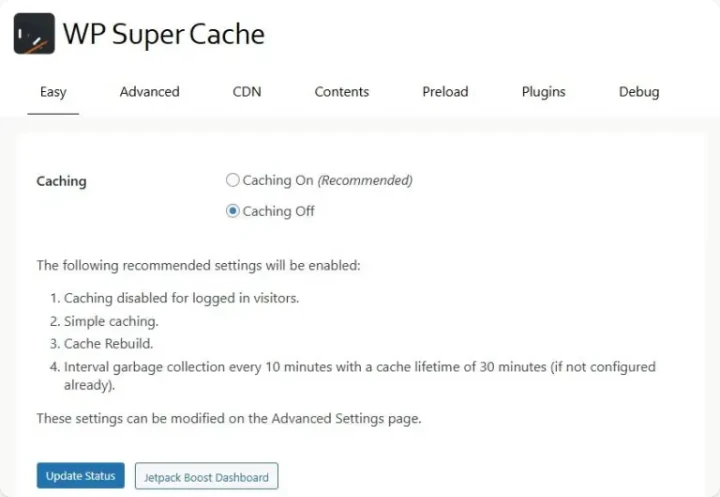
WP Super Cache generates static HTML files for many WordPress pages. Eligible visitors can receive those files without triggering the full WordPress processing required for an uncached request. Its recommended Simple mode still uses PHP to serve the cached file; Expert mode can bypass PHP using web-server rewrite rules.
Its narrower scope makes it suitable when straightforward page caching is the main requirement and other tools already handle image or front-end optimization. Ecommerce and membership sites should verify that personalized pages are excluded correctly.
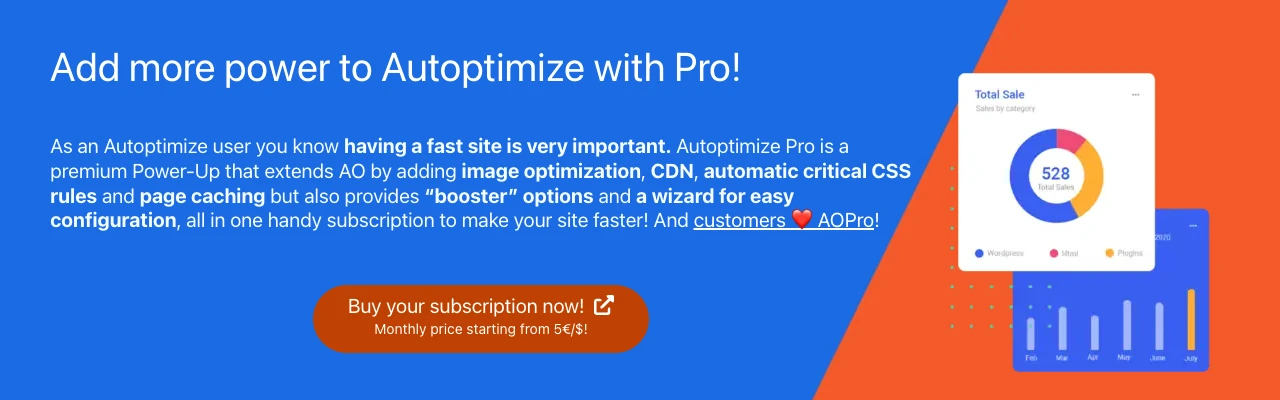
Autoptimize’s free plugin focuses on front-end assets and does not provide full-page caching. It can aggregate or minify supported CSS and JavaScript, optimize CSS delivery, defer scripts, and optimize HTML. Autoptimize Pro adds page caching, image optimization, CDN services and other paid features. Check which edition you are configuring, especially when the host or another plugin already provides caching.
The free edition is a useful companion when page caching is already handled at the server or hosting level. Because aggregation is not necessary for every modern HTTP setup, test its individual options instead of enabling all of them by default.
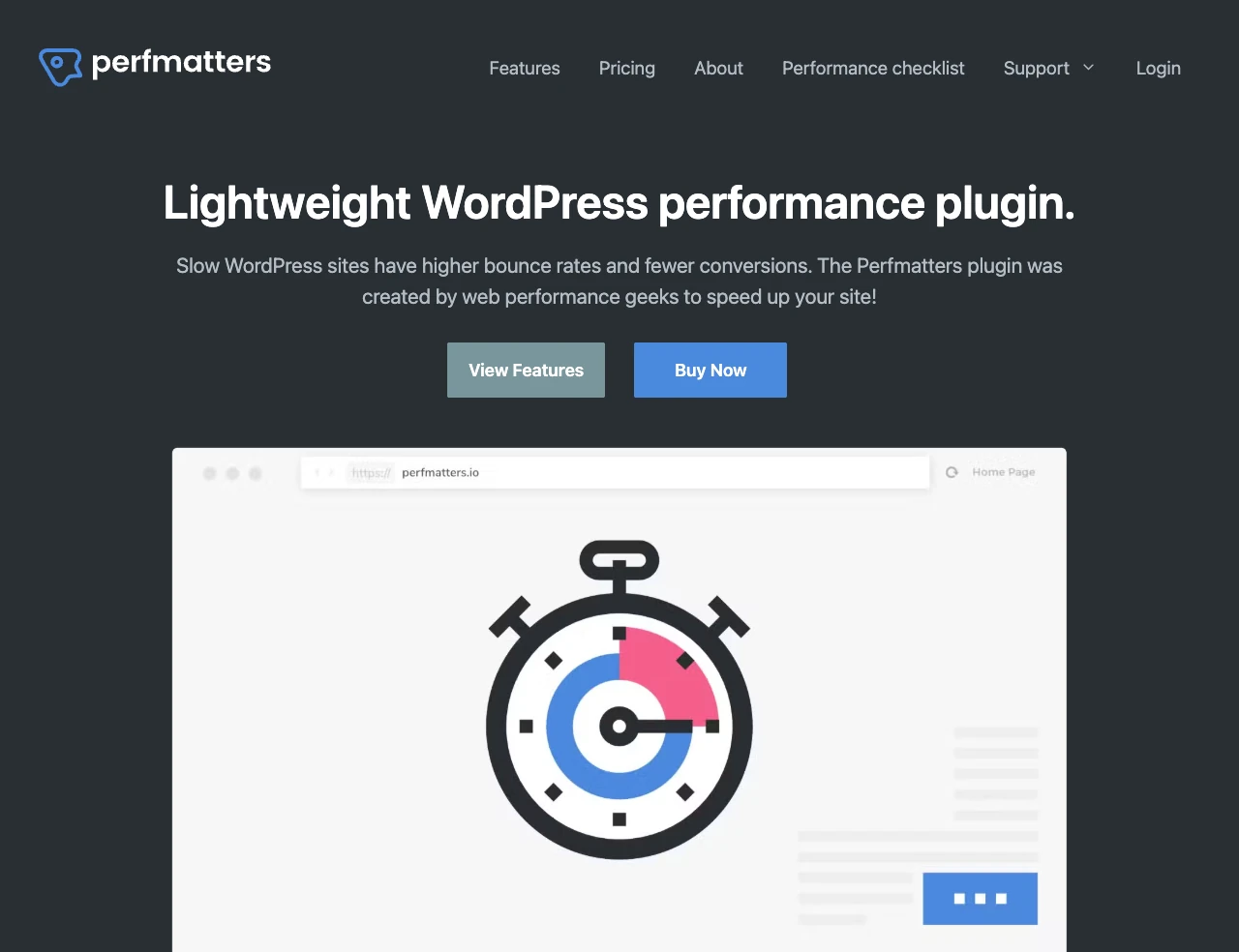
Perfmatters focuses on front-end optimization rather than full-page caching. It provides lazy loading, database optimization, script optimization, and controls for disabling selected WordPress features. Its Script Manager can prevent specific scripts or styles from loading on pages where they are not needed. Use a separate compatible page cache if your host does not already supply one.
That per-page control can reduce unnecessary requests, but disabling an asset without understanding its dependencies may break a component. Review important page templates after changing Script Manager rules.
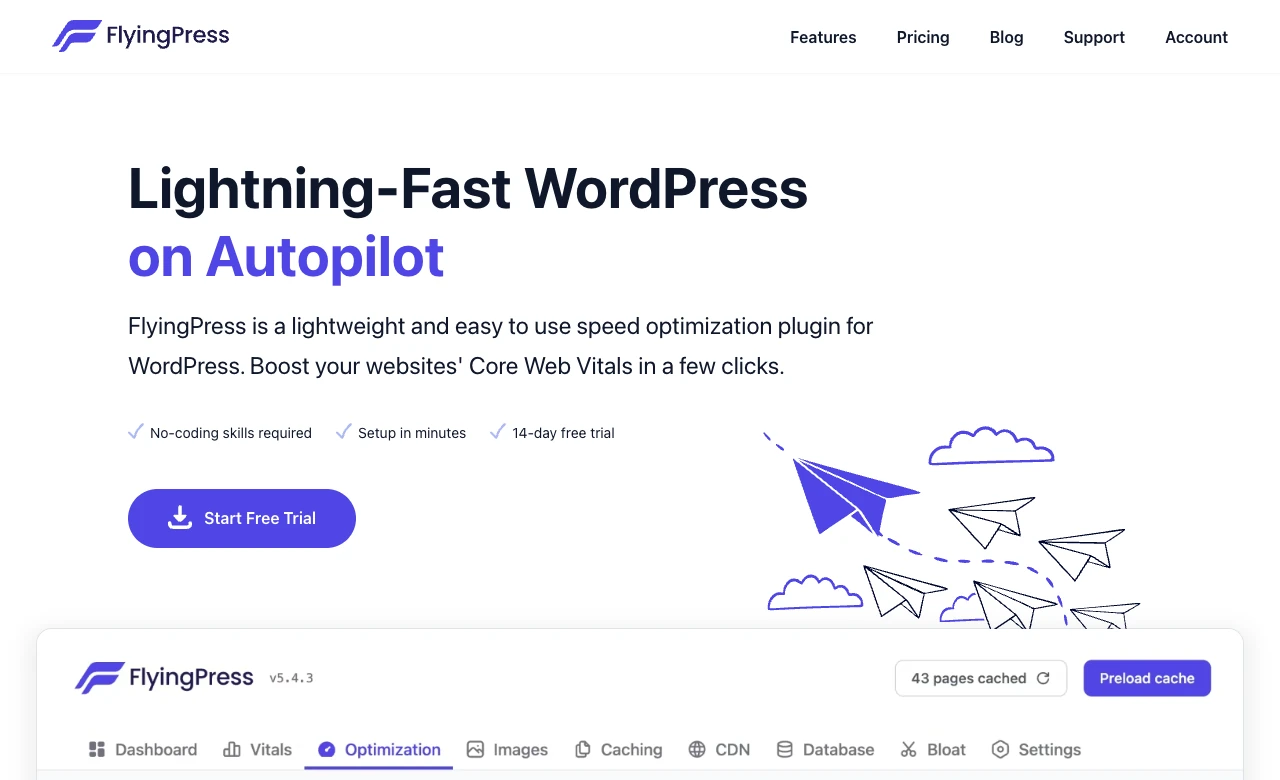
FlyingPress combines page caching, cache preloading, CSS and JavaScript optimization, lazy loading, and image optimization. It is designed for users who prefer to manage several optimization tasks through one plugin. Review the current plan and image-processing limits before relying on a particular allowance.
As with other all-in-one tools, review any optimization already performed by your host or CDN. Disable overlapping functions before activating equivalent FlyingPress settings.
Match the plugin to the bottleneck identified during testing:
The best choice is the plugin that addresses a measured problem without duplicating functions already supplied elsewhere. A simpler configuration that remains stable is preferable to a larger collection of features that cannot be tested or maintained reliably.
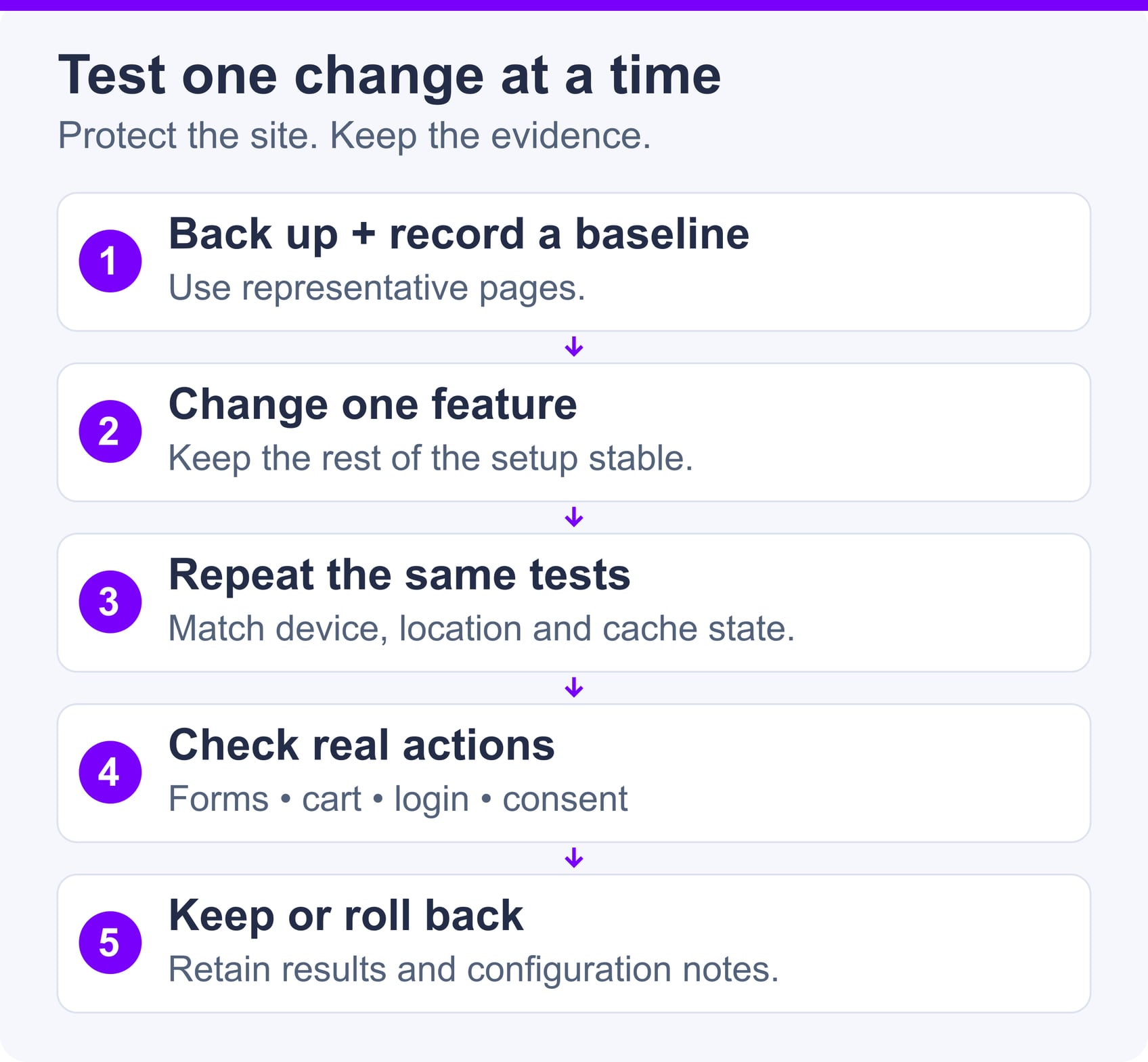
Create a baseline and a rollback plan before changing performance settings. Test more than the homepage because templates and interactive features may use different scripts.
Performance scores can vary between test runs. Repeat the same page tests with consistent device, network and location settings, and compare the median rather than selecting one unusually good result. Keep the cache state consistent: compare warmed-cache runs with warmed-cache runs, and report cold-cache results separately if you measure them. Retain the configuration and raw reports so a change can be reproduced.
Use laboratory tests to inspect an immediate change and real-user data to monitor the longer-term experience. PageSpeed Insights field data covers the preceding 28 days and may describe the whole origin when page-level data is insufficient. It is not instant before-and-after proof of a new plugin setting.
A performance plugin cannot compensate for every infrastructure or application problem. Hosting resources affect PHP execution and database response times, while themes and plugins determine how much work WordPress performs for each request.
Before adding another optimization tool, remove unused plugins, replace unnecessarily heavy components, limit third-party scripts, and upload images at appropriate dimensions. Query-monitoring and application-performance tools can help identify slow database requests or PHP processes that page-level tests do not explain.
SiteValley’s Small Business Hosting currently lists $8.95 per month or $95.99 per year, up to 50 hosted websites, unmetered web space and traffic, unlimited databases, daily backups with 60 recovery points, free SSL, and a dedicated IP. Its 100,000 monthly visits figure is an estimate under typical conditions, not a performance guarantee. Assess each site’s plugin load, traffic patterns, and processing requirements when choosing hosting.
Hosting, efficient site architecture, optimized media, caching, and controlled third-party code work together. If the server is consistently short of CPU, memory, or database capacity, changing infrastructure may be more effective than adding another plugin.
The best WordPress performance plugin is the one that resolves a verified bottleneck without creating overlapping optimization layers. WP Rocket and FlyingPress provide broad toolkits, LiteSpeed Cache is strongest when paired with compatible caching infrastructure, W3 Total Cache offers detailed configuration, and WP Super Cache focuses on static page caching. Autoptimize’s free edition and Perfmatters provide more targeted control over front-end assets and unnecessary scripts; Autoptimize Pro expands the feature set, including page caching.
Measure several important pages before making changes, configure one major feature at a time, and test all interactive functions afterward. If performance remains poor after caching and asset optimization, investigate hosting resources, database queries, themes, and third-party services rather than continuing to add plugins.
What is the best WordPress performance plugin?
Can I use more than one WordPress performance plugin?
Can performance plugins break a WordPress site?
How should I measure whether a performance plugin works?
Can a performance plugin fix slow hosting?

Quick Customer care response, accurate and broad assistance, easy to use client area.....
I am very happy with the service. I am with site valley for many years and at the present usimg 2 hosting packages. Their service is excellent and super fast. Thanks & Greatly Appreciated
I've been hosting my websites with Sitevalley for more than 6 years. Very satisfied with the services and reliability they provide, competitive prices, almost no downtime, fast and knowledgeable customer support.
I have been using side valley for a couple of years now and have to say I am very happy with the service they offer.I use many Hosting services but site valley stands out in front. Reliable service, great support.I don't normally leave reviews but felt I wanted to for this service as it has been fantastic
I didn't want to review so soon on into taking out hosting with site valley but I feel obliged because their customer service is outstanding, second to none, every time I had an issue it was sorted immediately. I would highly recommend Site Valley.
I have been with Sitevalley for over a year and it's the best hosting I have EVER used. And I have been through a lot of them.
The support staff are amazing, and it's clear that they have a passion for hosting websites. I've rather enjoyed this webhosting company and it's stability for the price is bar-none, amazing.
My collegue adviced me to use SiteValley as a reliable hosting provider with great prices, professional and fast Customer Service. My experience with SiteValley was exactly the way I was promised.
I have been with SiteValley for many years, and plan to stay with them for many more. Customer support is very responsive and knowledgeable.
SiteValley.com is rated 4.8 / 5 based on 329 Reviews »

© 2001 – 2026 SiteValley.com. All Rights Reserved.
