
Moving your website from Wix to WordPress is a significant but rewarding process. While Wix offers simplicity and convenience, its limitations eventually become clear for growing businesses and creators. WordPress, being open-source and self-hosted, gives you complete control over every aspect of your site—from design and functionality to SEO and scalability. This guide walks you through the process step by step, showing how to move your site efficiently without losing your content, structure, or visitors. If you’re wondering how to move a website from Wix to WordPress, this guide will help you do it safely and correctly from start to finish.
Migrating from Wix to WordPress allows you to gain full ownership of your online presence. Wix operates as a closed ecosystem, meaning you are tied to its hosting, editor, and pricing model. When you decide to migrate from Wix to WordPress, you’ll break free from those limitations and gain complete flexibility over your site’s functionality and hosting environment. WordPress, on the other hand, gives you freedom. You can choose your hosting provider, customize your site as you please, and use thousands of free and premium themes or plugins.
The process does involve a few manual steps since Wix doesn’t support direct exports, but with proper preparation, anyone can do it. Once you’re done, you’ll have a faster, more flexible website that can grow with your goals, whether you’re running a personal blog, business site, or online store.
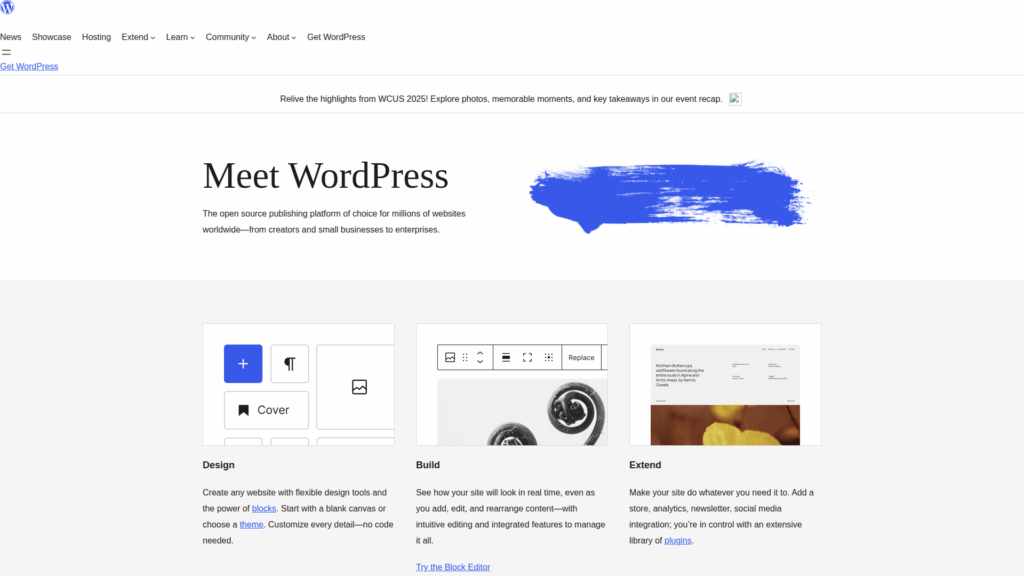
Before you begin the transfer, it helps to understand the fundamental differences that make people switch from Wix to WordPress. These distinctions can help you plan your migration more effectively and set realistic expectations for the improvements you’ll see. Many website owners choose to move site from Wix to WordPress because of these exact differences in flexibility and long-term potential.
Wix retains control of your site files and hosting. You can’t access the source code or move your website to another provider. With WordPress, your data belongs entirely to you. You decide where to host it, how to configure it, and what tools to use. This independence also means you can migrate, back up, or restore your site anytime.
Wix offers a visual editor that’s simple but restrictive. You can only use features available through its app market. WordPress supports thousands of plugins and themes, allowing you to add custom functionality such as forums, membership systems, or eCommerce stores. Developers can modify PHP, CSS, and JavaScript directly, giving limitless flexibility.
Wix is best for small or static sites. As traffic grows, performance can suffer, and costs rise quickly. WordPress is built to scale, from small blogs to enterprise websites, and adapts easily with caching, CDNs, and optimized hosting.
Wix pricing includes hosting, but you pay for convenience, often at a premium. With WordPress, you can choose from affordable shared hosting to high-performance VPS or dedicated servers. You control every upgrade and cost based on your site’s growth.

Preparation is the foundation of a successful move. Before touching any files, make sure you have a clear inventory of your current website and a plan for where everything will go in WordPress. Learning how to move a website from Wix to WordPress starts with careful preparation, ensuring that no data or design element gets lost during the transition.
Go through every page, blog post, gallery, and feature on your Wix site. Note which parts you want to keep, which can be improved, and what might be outdated. Take screenshots if necessary to use as visual references when rebuilding pages in WordPress.
Pick a dependable hosting provider with good speed, uptime, and support. A managed WordPress host can simplify setup, while a VPS gives more control and flexibility. Look for features such as SSD storage, daily backups, and one-click installs.
Most hosts include automatic WordPress installation through their control panels. Once installed, you can log in to your new dashboard and start customizing. If you prefer manual installation, download WordPress from wordpress.org and upload it to your server.
Choose a theme that aligns with your design goals. You can either replicate your Wix design using a similar layout or use this opportunity to refresh your site’s look. Responsive, SEO-optimized themes are best for long-term growth.
Wix doesn’t provide a universal export tool, so you’ll have to transfer your content using a combination of manual and automated methods.
Understanding how to move a website from Wix to WordPress is easier once all your exported files and notes are organized, making this step straightforward. Once you’ve gathered your content, it’s time to move it to your WordPress installation.
Once you migrate from Wix to WordPress, the fun begins as you can redesign your website exactly as you’ve always envisioned it. Your new site design is where WordPress truly shines. Use this step to enhance your website’s visual identity and functionality.
Many themes offer built-in customization through the Customizer panel. You can modify colors, typography, header styles, and backgrounds. If you want deeper control, use a child theme to safely edit code without losing changes after updates.
Extend your site’s functionality with essential plugins. Install SEO plugins like Rank Math or Yoast SEO, caching tools like W3 Total Cache, and security plugins such as Wordfence. Plugins allow you to recreate any missing Wix features and add entirely new ones.
Use widgets to display dynamic content such as recent posts, social feeds, or newsletter signups. Sidebars can host call-to-actions or important navigation links, improving user engagement and accessibility.

Maintaining your search engine rankings during migration is critical. Redirects and domain updates ensure that your visitors find the new site instead of broken pages.
After migrating from Wix to WordPress, it’s crucial to test your site carefully to ensure every page, plugin, and link works properly. Before announcing your new website, perform thorough testing to ensure everything functions as intended.
If you plan to move site from Wix to WordPress, these final steps will ensure the process goes smoothly without affecting your visitors. These additional steps help minimize disruption and ensure your migration is as seamless as possible.
Many hosting providers offer a staging area where you can test your WordPress site before making it public. This helps catch bugs and layout issues early.
Keep your Wix site live until you’ve tested everything and confirmed that the WordPress version works perfectly. Once you’re ready, switch your domain settings to the new host.
WordPress is powerful but requires regular care. Schedule automatic updates, backups, and performance checks to keep your site secure and fast.
Moving from Wix to WordPress gives you true freedom to grow, customize, and scale your website. While the process may take a few hours to complete, the benefits are long-term: better SEO control, improved flexibility, and ownership of your data. Once your WordPress site is live, you’ll enjoy full creative control and a stronger foundation for future expansion. By now, you’ve seen how to move a website from Wix to WordPress in a way that keeps your design, traffic, and SEO intact.
At SiteValley, we make your move from Wix to WordPress seamless. Our hosting solutions are optimized for WordPress performance, combining reliability, speed, and dedicated support. You’ll have full access to all the tools you need to launch and manage your new website with confidence. We recommend our Small Business Hosting Plan, perfect for personal and professional websites that need stability, scalability, and strong performance. With SiteValley, your WordPress migration is in safe hands, fast, secure, and fully under your control.

Quick Customer care response, accurate and broad assistance, easy to use client area.....
I am very happy with the service. I am with site valley for many years and at the present usimg 2 hosting packages. Their service is excellent and super fast. Thanks & Greatly Appreciated
I've been hosting my websites with Sitevalley for more than 6 years. Very satisfied with the services and reliability they provide, competitive prices, almost no downtime, fast and knowledgeable customer support.
I have been using side valley for a couple of years now and have to say I am very happy with the service they offer.I use many Hosting services but site valley stands out in front. Reliable service, great support.I don't normally leave reviews but felt I wanted to for this service as it has been fantastic
I didn't want to review so soon on into taking out hosting with site valley but I feel obliged because their customer service is outstanding, second to none, every time I had an issue it was sorted immediately. I would highly recommend Site Valley.
I have been with Sitevalley for over a year and it's the best hosting I have EVER used. And I have been through a lot of them.
The support staff are amazing, and it's clear that they have a passion for hosting websites. I've rather enjoyed this webhosting company and it's stability for the price is bar-none, amazing.
My collegue adviced me to use SiteValley as a reliable hosting provider with great prices, professional and fast Customer Service. My experience with SiteValley was exactly the way I was promised.
I have been with SiteValley for many years, and plan to stay with them for many more. Customer support is very responsive and knowledgeable.
SiteValley.com is rated 4.8 / 5 based on 329 Reviews »

© 2001 – 2026 SiteValley.com. All Rights Reserved.
