

Squarespace has earned a reputation as one of the easiest platforms for building websites. Its drag-and-drop design tools and all-in-one features make it appealing to beginners and small businesses. However, as websites grow, many users start to feel limited by what Squarespace allows. WordPress, on the other hand, powers more than 40% of all websites worldwide and provides unmatched flexibility, scalability, and control. Learning how to move from Squarespace to WordPress is the key to unlocking those benefits without losing the work you’ve already put into your site.
Migrating from Squarespace to WordPress can seem overwhelming at first, but it’s very achievable with a step-by-step approach. For many users, migrating from Squarespace to WordPress is the natural next step when their site outgrows the limits of Squarespace. This guide walks you through every stage of the process—preparing your website, exporting data, rebuilding your design, handling SEO, and launching on WordPress successfully.
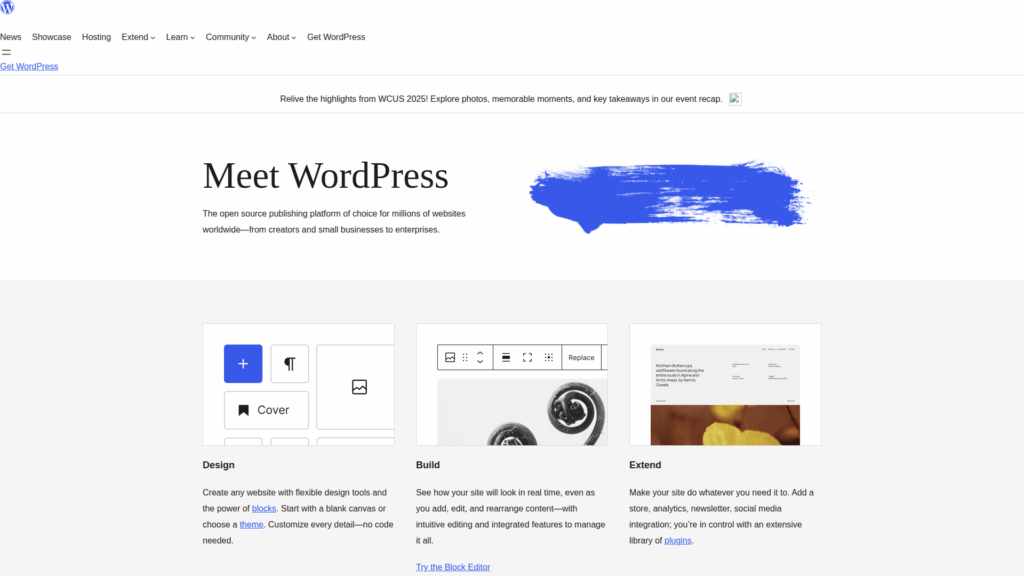
Squarespace is beginner-friendly, but it restricts how far you can take your website in terms of customization and advanced functionality. WordPress offers a much larger toolkit.
With WordPress, you can choose from over 10,000 free and premium themes and more than 60,000 plugins. Unlike Squarespace, which has limited template designs, WordPress lets you fully edit your site’s code if you need custom functionality, giving you total creative control.
Squarespace is fine for a small blog or portfolio, but WordPress can power anything from a personal site to a global e-commerce store with millions of visitors. You will not hit a growth ceiling because the platform can scale endlessly with your needs.
Squarespace charges flat monthly fees that rise depending on features like e-commerce. WordPress itself is free and open-source—you only pay for hosting, themes, or premium plugins, which can often be more cost-effective in the long run, especially for larger projects.
WordPress gives you granular control over on-page SEO, schema, metadata, and site structure. With the right plugins (like Yoast SEO or Rank Math), it’s easier to boost your rankings compared to Squarespace’s more limited options, giving your site better visibility.

Preparation makes the migration smoother and prevents surprises later.
Unlike Squarespace, WordPress requires hosting. Select a reliable provider with good uptime, fast performance, and responsive support, as your hosting forms the backbone of your new website.
WordPress.com is a hosted version with restrictions, while WordPress.org (self-hosted) gives you full control. For serious site owners, WordPress.org is the best option because it supports plugins, themes, and full customization.
Even though you’ll export data, make a full backup of text, images, and design references. Screenshots can also help when recreating layouts later, ensuring you do not lose the look and feel you worked hard to build.
Not everything on your Squarespace site will migrate easily. Make a list of must-have pages, posts, and design elements you want to transfer, so you stay focused on what’s most important and save time during migration. This preparation will help you clearly understand how to move from Squarespace to WordPress without overlooking any essential details.
Once you’ve chosen your hosting provider, it’s time to install WordPress.

If you want to move a site from Squarespace to WordPress, Squarespace provides a built-in export feature, but it has limitations.
Pages, blog posts, galleries, and some images will transfer into an XML file that WordPress can read. This allows you to bring over the bulk of your site content without manual work.
Product pages, event pages, style customizations, custom CSS, or embedded features (like forms and third-party integrations). These need to be rebuilt manually, so plan ahead for extra time.
From your Squarespace dashboard, go to Settings > Advanced > Import/Export > Export, then select the WordPress option to download your XML file. This file is the foundation of your migration, and you’ll use it in the next step.
Once you have exported your Squarespace content into an XML file, the next step is to bring it into WordPress. This is done through the WordPress Import Tool, which is available in the dashboard under Tools > Import. After installing the WordPress Importer, you can upload your XML file and begin the transfer process. During the import, WordPress will ask you to assign posts to an author, which you can either map to an existing user or create as new. When the import is finished, it’s important to carefully review your site. Some pages, posts, and images may not display perfectly, and certain elements may be missing entirely. These gaps usually require manual fixes, such as re-uploading images or copying text for product descriptions. While it may feel tedious, this step ensures that your content is properly transferred and fully functional.
After your content is in place, the design and structure of the site need attention. WordPress will not replicate your Squarespace design, so you will be starting with a fresh theme that requires customization. Begin by adjusting colors, fonts, and layouts to align with your brand identity. If you want more creative control, page builders such as Elementor or Beaver Builder make it easier to recreate advanced designs. The navigation menus should also be rebuilt, making sure they lead visitors to the correct pages and categories. Some layouts, particularly those created with Squarespace’s unique block system, may need to be rebuilt from scratch. WordPress’s block editor can handle this, but in some cases, a page builder may provide closer results. Finally, don’t forget about interactive features like contact forms or booking tools, which require setting up new plugins to restore their functionality.
If your Squarespace site had e-commerce functionality, you’ll need to rebuild it.
One of the biggest risks in migration is losing search rankings.
Before you make your WordPress site live, it’s important to run thorough checks to ensure everything works as expected. Careful testing reduces the risk of errors that could frustrate visitors or hurt your site’s reputation after launch. Once your site is live, ongoing optimization helps maintain strong performance, security, and user experience.
Go through every page and post on your site to make sure content displays correctly and that formatting hasn’t been lost in the migration. Check internal and external links to confirm they point to the right places, and ensure your navigation menus are intuitive. If your site includes multimedia content such as videos or galleries, test them on both desktop and mobile devices. For e-commerce sites, it is critical to place a test order to verify that checkout, payment processing, and email confirmations work properly.
When you are confident in your site’s functionality, the next step is pointing your domain to your new WordPress hosting. This change makes your WordPress site publicly accessible and replaces your old Squarespace site. After launch, monitor the site closely for any issues such as broken links, missing images, or formatting errors. Early detection and quick fixes will make the transition seamless for your visitors.
The work does not stop once your site is live. Optimization is an ongoing process that ensures your WordPress site runs efficiently. Focus on speed by using caching plugins, compressing images, and considering a CDN if you have international traffic. Security is equally important, so enable SSL, use a firewall plugin, and schedule regular malware scans. Automating backups is another key step, as it ensures you can restore your site quickly if something goes wrong. Finally, connect your site to analytics tools like Google Analytics to track performance and adjust your strategy based on real user behavior.
Even with careful planning, migrating a website is rarely without obstacles. Some issues are common when making the switch, but with the right approach they can be resolved quickly and effectively.
Migrating from Squarespace to WordPress is a project that requires planning and effort, but the benefits are significant. By migrating from Squarespace to WordPress, you open the door to greater flexibility, control, and long-term growth. WordPress gives you control, scalability, and tools to grow your website well beyond Squarespace’s limits. With careful preparation, proper handling of SEO, and attention to design, your migration will set you up for long-term success.
At SiteValley, we know how important it is to move a site from Squarespace to WordPress smoothly and securely for your website’s future. That’s why we provide hosting solutions built with WordPress in mind, delivering speed, reliability, and expert support to help you make the switch without hassle. If you’re ready to move from Squarespace to WordPress, we recommend starting with our Pro Hosting plan, which offers the perfect balance of resources, security, and affordability for growing websites. With SiteValley, you can focus on building your site while we handle the hosting.

Quick Customer care response, accurate and broad assistance, easy to use client area.....
I am very happy with the service. I am with site valley for many years and at the present usimg 2 hosting packages. Their service is excellent and super fast. Thanks & Greatly Appreciated
I've been hosting my websites with Sitevalley for more than 6 years. Very satisfied with the services and reliability they provide, competitive prices, almost no downtime, fast and knowledgeable customer support.
I have been using side valley for a couple of years now and have to say I am very happy with the service they offer.I use many Hosting services but site valley stands out in front. Reliable service, great support.I don't normally leave reviews but felt I wanted to for this service as it has been fantastic
I didn't want to review so soon on into taking out hosting with site valley but I feel obliged because their customer service is outstanding, second to none, every time I had an issue it was sorted immediately. I would highly recommend Site Valley.
I have been with Sitevalley for over a year and it's the best hosting I have EVER used. And I have been through a lot of them.
The support staff are amazing, and it's clear that they have a passion for hosting websites. I've rather enjoyed this webhosting company and it's stability for the price is bar-none, amazing.
My collegue adviced me to use SiteValley as a reliable hosting provider with great prices, professional and fast Customer Service. My experience with SiteValley was exactly the way I was promised.
I have been with SiteValley for many years, and plan to stay with them for many more. Customer support is very responsive and knowledgeable.
SiteValley.com is rated 4.8 / 5 based on 329 Reviews »

© 2001 – 2026 SiteValley.com. All Rights Reserved.
