
Keeping a WordPress website secure is essential for protecting your visitors, your data, and your reputation. Since WordPress is the world’s most widely used content management system, it attracts both legitimate developers and malicious attackers. Learning how to secure a WordPress website means combining good habits, reliable tools, and consistent maintenance so vulnerabilities cannot be exploited over time. The following guide walks you through the most important areas to focus on when building a strong security foundation.
To understand how to secure a WordPress website effectively, you first need to recognize the main threats you are defending against.
These are attempts to guess your username and password until access is gained. Attackers use automated tools that can try thousands of combinations in minutes, which can overload your login page or break weak credentials entirely. Brute force attempts often come from large botnets, making them difficult to block without proper safeguards.
Many attacks originate from outdated add-ons. When developers fail to update code or patch security issues, attackers search for sites still running vulnerable versions. One outdated plugin can compromise an entire installation.
These weaknesses allow attackers to run harmful commands or inject code into your pages. They usually exploit forms, URLs, or improperly sanitized data. If successful, they can steal user information, deface pages, or gain full control of your site.
Some attacks install hidden scripts inside your files. These scripts allow attackers to keep returning even after you believe the issue has been resolved. Backdoors can sit unnoticed for months and activate when the attacker chooses.
While not always a direct hack, overwhelming traffic can make your website slow or unreachable. Recognizing these threats gives you a practical WordPress security checklist that helps you prepare for both simple and complex attacks.
One of the first steps in learning how to secure a WordPress website is protecting the login area, since it is a common target for automated attacks.
Keeping everything updated forms a key part of any WordPress security checklist and prevents vulnerabilities from remaining open.
Automatically applying minor patches ensures your site does not stay vulnerable while waiting for manual attention. Most security patches are released quietly to avoid public exposure, so installing them quickly is key.
Unused or inactive extensions often contribute to common WordPress security problems because attackers can still exploit outdated code. Reducing the number of installed items reduces the number of potential attack points.
Reliable developers offer frequent updates, good support, and secure coding practices. Their products are less likely to be abandoned or exploited.
If you run a complex site, testing changes before applying them to production helps avoid downtime caused by plugin conflicts or unexpected errors.

A secure server environment protects your site before WordPress even loads.
Your database contains all essential site data, so securing it is a major priority.
Hardening WordPress means tightening the internal environment of your installation. Attacks rarely succeed through the WordPress core itself, but vulnerabilities around it can be exploited if these protections are missing.
When file editing is allowed, anyone with admin access can inject malicious code directly into theme or plugin files. Disabling this feature prevents attackers who breach accounts from escalating damage quickly. This single setting blocks a common method used in automated attacks.
Some of the best security plugins for WordPress, such as Wordfence and Sucuri, provide firewalls, malware scanning, login protection, and integrity checking. They actively scan your site for suspicious changes, block dangerous requests, and notify you of abnormal patterns. These plugins extend the protection of your site beyond standard WordPress features.
Attackers often place malicious scripts in the uploads folder because it accepts user content by default. Blocking PHP execution in this folder prevents scripts from running even if they are uploaded successfully. This removes one of the most common backdoor installation methods.
Security headers protect your site from clickjacking, code injection, dangerous inline scripts, and unauthorized framing. Headers like X-Frame-Options, Content-Security-Policy, and X-Content-Type-Options add extra rules that browsers follow, reducing the risk of manipulated or injected content.
The REST API is useful for plugins and integrations, but not every site needs it open to the public. Restricting access to authenticated users reduces information exposure and blocks a potential entry point for attackers scanning API endpoints.
File uploads are necessary for many websites, but they remain a common vector for hidden malware.
Permissions should be restricted to trusted users only. Every additional account with upload access increases risk. Limiting permissions reduces the chance of accidental or malicious upload activity.
Allowing only specific extensions, such as images or documents, blocks executable files that can run malicious code. Some attacks even use specially crafted images to exploit vulnerabilities in image processing libraries. Restricting formats helps reduce these risks.
Security plugins and server tools can inspect files during upload, scanning metadata and internal structures for suspicious patterns. This helps detect hidden scripts inserted into otherwise normal-looking files.
Moving uploads outside publicly accessible folders prevents files from being executed directly even if someone tries to call them through a browser. This isolates potentially dangerous content and reduces the impact of a successful upload attack.
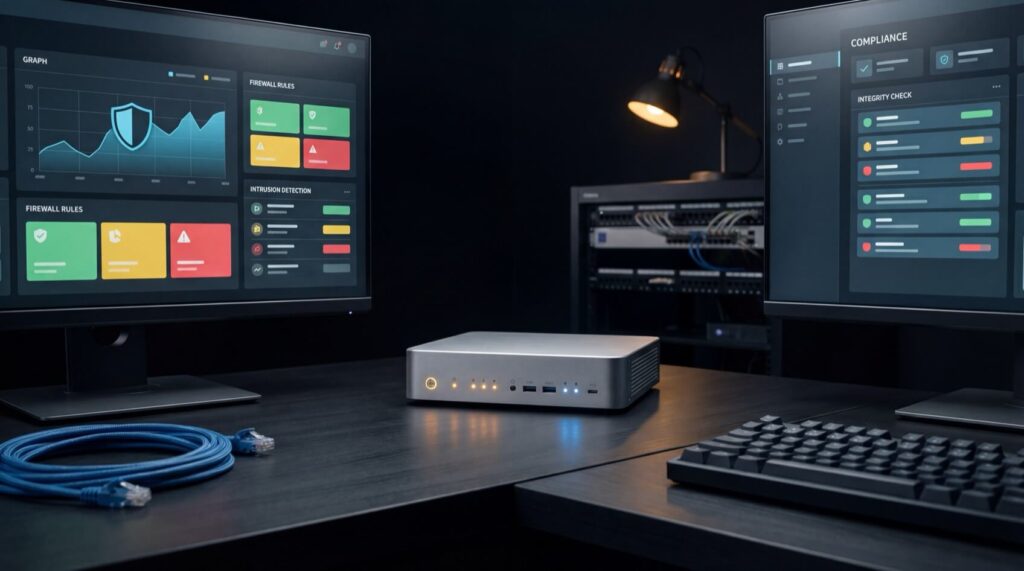
Monitoring is essential for spotting problems early. A strong security setup detects issues long before they turn into serious damage.
Tracking login behavior reveals patterns such as repeated failed attempts, logins from unusual locations, or new accounts behaving strangely. Identifying these early helps prevent unauthorized access.
Monitoring services notice downtime instantly and alert you even if your server is offline. Unexpected slowdowns, traffic spikes, or resource exhaustion frequently indicate WordPress security problems that require immediate attention.
Alerts help you react quickly when something unusual happens. The best security plugins for WordPress also offer alerting features that notify you of suspicious logins, file changes, or modifications to core files. Fast response is key to limiting damage.
Logs from the web server, firewall, and security plugins contain valuable details about what is happening behind the scenes. They help detect probing attempts, repeated 404 scans, files accessed unexpectedly, or scripts executed without authorization.
Integrity scans compare your current WordPress files to known good versions. If a file is altered, injected, or replaced, the system alerts you. This helps catch malware that silently embeds itself in your installation.
A reliable backup plan ensures that even if something goes wrong, your website can be restored quickly and safely.
Security is an ongoing process that requires attention to keep your site protected.
Understanding how to secure a WordPress website requires a combination of ongoing habits, technical adjustments, and proactive decisions rather than a single action. By strengthening the login area, keeping your installation updated, hardening the server environment, and monitoring activity, you significantly lower the chances of an attack succeeding. When you also include backups and continuous maintenance, your website becomes far more resilient. With a strong foundational setup, your WordPress site can remain stable, trustworthy, and safe for visitors over the long term.
At SiteValley, we focus on providing a stable and secure hosting environment that supports the needs of WordPress websites. Our infrastructure includes strong server-level safeguards, proactive monitoring, and optimized performance settings designed to keep your site running smoothly even during high-traffic periods. We maintain a reliable platform that helps protect your project from common threats while ensuring consistent uptime.
For this type of website, we recommend our Business Hosting plan, which offers ample resources, solid isolation, and a dependable setup suitable for WordPress. This plan provides the balance of performance and security needed for long-term stability, making it a strong choice for anyone looking to keep their WordPress site safe and reliable.

Quick Customer care response, accurate and broad assistance, easy to use client area.....
I am very happy with the service. I am with site valley for many years and at the present usimg 2 hosting packages. Their service is excellent and super fast. Thanks & Greatly Appreciated
I've been hosting my websites with Sitevalley for more than 6 years. Very satisfied with the services and reliability they provide, competitive prices, almost no downtime, fast and knowledgeable customer support.
I have been using side valley for a couple of years now and have to say I am very happy with the service they offer.I use many Hosting services but site valley stands out in front. Reliable service, great support.I don't normally leave reviews but felt I wanted to for this service as it has been fantastic
I didn't want to review so soon on into taking out hosting with site valley but I feel obliged because their customer service is outstanding, second to none, every time I had an issue it was sorted immediately. I would highly recommend Site Valley.
I have been with Sitevalley for over a year and it's the best hosting I have EVER used. And I have been through a lot of them.
The support staff are amazing, and it's clear that they have a passion for hosting websites. I've rather enjoyed this webhosting company and it's stability for the price is bar-none, amazing.
My collegue adviced me to use SiteValley as a reliable hosting provider with great prices, professional and fast Customer Service. My experience with SiteValley was exactly the way I was promised.
I have been with SiteValley for many years, and plan to stay with them for many more. Customer support is very responsive and knowledgeable.
SiteValley.com is rated 4.8 / 5 based on 329 Reviews »

© 2001 – 2026 SiteValley.com. All Rights Reserved.
